This is the full developer documentation for OpenCode Mobile
# OpenCode Mobile Documentation
> Set up OpenCode Mobile, connect your OpenCode server, and use chats, projects, terminal, voice, notifications, sharing, and Cloud Link on Android or iOS.
OpenCode Mobile is a community-built Android and iOS client for an [OpenCode](https://opencode.ai/) server that you run yourself. It keeps agent work, approvals, project files, and terminal commands reachable from your phone.
OpenCode Mobile is **not** an official OpenCode product, a hosted AI service, or a replacement for the OpenCode server.
## Choose your starting point
| If you want to… | Start here |
| ----------------------------------------- | --------------------------------------------------- |
| Understand what the app does | [What is OpenCode Mobile?](https://getopencode.app/docs/introduction/) |
| Download the app | [Download and install](https://getopencode.app/docs/opencode-android-app/) |
| Connect a server and finish a first task | [Set up OpenCode Mobile](https://getopencode.app/docs/getting-started/) |
| Manage servers, QR pairing, or Cloud Link | [Add or switch connections](https://getopencode.app/docs/connections/) |
| Learn the controls after setup | [User manual](https://getopencode.app/docs/user-manual/) |
| Fix a connection or feature problem | [Troubleshooting](https://getopencode.app/docs/guides/troubleshooting/) |
## The shortest safe path
1. **[Install the app](https://getopencode.app/docs/opencode-android-app/)** from Google Play, the direct APK, or TestFlight.
2. **[Start OpenCode 2 and pair](https://getopencode.app/docs/getting-started/#3-start-opencode)** on the machine that owns your project.
3. **[Connect the app](https://getopencode.app/docs/getting-started/#5-connect-the-app)** with a QR code, manual URL, or Cloud Link.
4. **[Select a project](https://getopencode.app/docs/getting-started/#6-select-a-project)** and send a small, verifiable task.
If you only need the app on the same trusted network, the [local network guide](https://getopencode.app/docs/guides/local-network/) is the shortest route. For access outside your network, compare [Tailscale, Cloudflare Tunnel, a reverse proxy, SSH, and Cloud Link](https://getopencode.app/docs/remote-access/).
## Do a specific task
* **[Start and monitor a task](https://getopencode.app/docs/guides/tasks/)** — send work, follow progress, steer a running turn, and stop a bad direction.
* **[Manage chats and sessions](https://getopencode.app/docs/guides/sessions/)** — search, favorite, archive, restore, fork, or share work.
* **[Review approvals and changes](https://getopencode.app/docs/guides/approvals-and-changes/)** — answer permissions and review Turn, Uncommitted, or Branch diffs.
* **[Use voice](https://getopencode.app/docs/guides/voice/)** — dictate a prompt or run a hands-free conversation.
* **[Understand session usage](https://getopencode.app/docs/guides/usage/)** — read context pressure, tokens, steps, and cost estimates.
* **[Work with project files](https://getopencode.app/docs/guides/workspace-files/)** — search, read, and save focused edits.
* **[Use the terminal](https://getopencode.app/docs/guides/terminal/)** — open a project PTY in the xterm-based terminal.
* **[Manage worktrees](https://getopencode.app/docs/guides/worktrees/)** — isolate parallel work.
* **[Configure providers and models](https://getopencode.app/docs/guides/providers-and-models/)** — connect AI providers and choose models.
* **[Manage MCP and diagnostics](https://getopencode.app/docs/guides/mcp-and-diagnostics/)** — inspect tools, realtime updates, and server health.
* **[Receive task notifications](https://getopencode.app/docs/guides/notifications/)** — completion and needs-input alerts.
* **[Share from another app](https://getopencode.app/docs/guides/share-from-other-apps/)** — send text, links, and files into a chat on Android.
* **[Use quick actions and widgets](https://getopencode.app/docs/guides/quick-actions-and-widgets/)** — reach recent chats from the launcher or Android home screen.
## Connect your way
| Method | Best for | Guide |
| ----------------- | --------------------------------------------------- | ---------------------------------------------------- |
| Manual URL | Any reachable server, including a VPN or tunnel | [Connections](https://getopencode.app/docs/connections/) |
| Local QR | Phone and computer on the same network (OpenCode 2) | [Local network](https://getopencode.app/docs/guides/local-network/) |
| Tailscale | Private access between your own devices | [Tailscale](https://getopencode.app/docs/guides/tailscale/) |
| Cloudflare Tunnel | A public HTTPS address with your own tunnel | [Cloudflare Tunnel](https://getopencode.app/docs/guides/cloudflare-tunnel/) |
| Reverse proxy | Existing HTTPS infrastructure or an API prefix | [Reverse proxy](https://getopencode.app/docs/guides/reverse-proxy/) |
| SSH forwarding | Advanced users with a mobile SSH client | [SSH forwarding](https://getopencode.app/docs/guides/ssh-forward/) |
| Cloud Link | Managed remote access with a store subscription | [Cloud Link](https://getopencode.app/docs/cloud-link/) |
Read the [remote access security model](https://getopencode.app/docs/guides/remote-access-security/) before exposing a server beyond a trusted network.
## How the pieces fit
| Piece | What it is | Where it runs |
| ---------------- | --------------------------------------------------- | ---------------------------- |
| OpenCode Mobile | The mobile client you install | Android or iOS |
| OpenCode server | The coding agent that owns your project | Your computer or server |
| Connection route | LAN, VPN, tunnel, proxy, SSH forward, or Cloud Link | Between the phone and server |
The app is a remote control. Your repository, provider credentials, build tools, and complete development environment stay on the machine that runs OpenCode.
## Configure the app
Use [Settings and customization](https://getopencode.app/docs/guides/settings/) for connection profiles, AI providers, model visibility, notifications, voice, appearance, language, approvals, MCP, diagnostics, and update checks.
## Fix a problem
* **[Troubleshooting](https://getopencode.app/docs/guides/troubleshooting/)** — work from the server outward with a symptom-based checklist.
* **[FAQ](https://getopencode.app/docs/faq/)** — short answers about platforms, connections, file editing, sharing, widgets, and privacy.
* **[Releases and compatibility](https://getopencode.app/docs/changelog/)** — current release, OpenCode 1.x/2.x support, and known limits.
## For AI assistants
Use [Documentation for AI assistants](https://getopencode.app/docs/for-ai-agents/) for canonical facts, machine-readable endpoints, and citation guidance. The site also publishes [`llms.txt`](https://getopencode.app/llms.txt), [`llms-full.txt`](https://getopencode.app/llms-full.txt), and raw Markdown for every page.
# Set Up OpenCode Mobile
> Install OpenCode Mobile, start an OpenCode 2 server, pair with a QR code, connect from Android or iOS, and complete your first task.
This guide covers the shortest safe path from an OpenCode server to your first completed mobile task. OpenCode 2 is the current primary target; the app also supports OpenCode 1.x servers with manual connections.
## What you need
* An Android device or iPhone/iPad.
* A computer or server running a current OpenCode version.
* A network route from the phone to the server: local network, VPN, tunnel, reverse proxy, SSH forward, or Cloud Link.
* The server URL and password, or a one-time pairing link/QR code.
## 1. Install OpenCode Mobile
Use the [Download page](https://getopencode.app/download/) to choose an installation method:
* **Google Play (recommended):** install and receive updates through Google Play.
* **Direct GitHub APK:** download and install the latest release manually.
* **iOS TestFlight beta:** join the [OpenCode Mobile TestFlight release](https://testflight.apple.com/join/ddcE5Wzz) and install the beta.
The Android options install the latest Android release; TestFlight installs the iOS beta. See [Download and install](https://getopencode.app/docs/opencode-android-app/) for platform-specific details.
## 2. Install or update OpenCode
For OpenCode 2, use the current v2 installer:
```bash
curl -fsSL https://opencode.ai/v2/install | bash
```
Or install the CLI with npm:
```bash
npm install -g @opencode/cli
```
Confirm the installed major version:
```bash
opencode --version
```
If you deliberately use an OpenCode 1.x server, install it with the 1.x installer (`https://opencode.ai/install` or `opencode-ai` on npm) and use the V1 startup note below.
## 3. Start OpenCode
### Recommended: OpenCode 2 shared service and pairing
OpenCode 2 normally runs a shared background server. Start it explicitly, confirm its address, and create a pairing link:
```bash
opencode service set password 'use-a-strong-password'
opencode service set port 4096
opencode service start
opencode service status
opencode pair
```
`opencode pair` prints a one-time link and a QR code. Scan the QR code from OpenCode Mobile, or paste the pairing link into the app. Pairing links expire after five minutes and work once.
If the phone is on the same trusted LAN, bind the service to a reachable interface before pairing:
```bash
opencode service set hostname 0.0.0.0
opencode service start
opencode pair
```
Only do this on a trusted network and protect the server with a password. For access through Tailscale, Cloudflare Tunnel, or a reverse proxy, keep the service on loopback and pair with the public URL. If you changed the hostname for LAN access, set it back and restart before pairing:
```bash
opencode service set hostname 127.0.0.1
opencode service start
opencode pair --url https://your-opencode-host.example
```
OpenCode 2 also supports `opencode pair --remote`, which exposes the server through an OpenTunnel address after an explicit confirmation. This is separate from Cloud Link. Treat the tunnel like any other public endpoint and review the [remote-access security guidance](https://getopencode.app/docs/guides/remote-access-security/).
### Standalone server
`opencode serve` runs the same server in the foreground instead of through the shared background service:
```bash
OPENCODE_SERVER_PASSWORD='use-a-strong-password' \
opencode serve --hostname 127.0.0.1 --port 4096
```
Use this for an always-on host, a service supervisor, Docker, or a deliberately dedicated server. Pairing requires the shared service, so connect to a standalone server manually with its URL and password.
### OpenCode 1.x
On OpenCode 1.x, start `opencode serve` for the API, or `opencode web` when you also want the browser UI:
```bash
export OPENCODE_SERVER_USERNAME=your-user
export OPENCODE_SERVER_PASSWORD='use-a-strong-password'
opencode serve --hostname 127.0.0.1 --port 4096
```
Connect V1 servers manually. Local QR pairing is an OpenCode 2 feature.
### Verify the server
With the shared service running:
```bash
opencode api get /api/info
```
For a manual or external connection, test the exact API base from the phone’s network:
```bash
curl -u your-user:use-a-strong-password \
https://your-opencode-host.example/global/health
```
For a path-prefixed proxy, include the prefix:
```bash
curl -u your-user:use-a-strong-password \
https://your-opencode-host.example/api/global/health
```
A healthy response includes `healthy: true` and may include the OpenCode version. If the root displays a web UI and the app reports a 404 or a non-API response, enter the API base URL instead—commonly the same address with `/api`.
## 4. Choose a connection route
| Route | Best for | Phone-side action |
| ----------------- | ---------------------------------------------- | ---------------------------------------------------------------- |
| Local network | Phone and server on the same private network | Scan `opencode pair`, or enter the LAN URL |
| Tailscale | Private access across networks | Scan a pair link created with `--url`, or enter the `ts.net` URL |
| Cloudflare Tunnel | Public HTTPS without router port forwarding | Scan a pair link created with `--url`, or enter the tunnel URL |
| Reverse proxy | Existing HTTPS infrastructure or a path prefix | Scan a pair link created with `--url`, or enter the API base |
| SSH local forward | Advanced users with a mobile SSH client | Enter `http://127.0.0.1:4096` manually |
| Cloud Link | Managed access with a store subscription | Scan the connector QR |
Follow [Remote Access](https://getopencode.app/docs/remote-access/) for the exact commands and security tradeoffs. Use the dedicated [Tailscale](https://getopencode.app/docs/guides/tailscale/), [Cloudflare Tunnel](https://getopencode.app/docs/guides/cloudflare-tunnel/), [local network](https://getopencode.app/docs/guides/local-network/), or [Cloud Link](https://getopencode.app/docs/cloud-link/) guide for the route you choose.
Cloud Link is a separate connector product. See the [OpenCode Cloud Link website](https://opencodecloud.link/) for connector downloads, platform support, and pricing.
## 5. Connect the app
On first launch, onboarding walks through these steps:
1. **Welcome** — continue into setup.
2. **Permissions** — optionally enable notifications and voice input.
3. **Connect** — add a server connection.
4. **Project** — choose an OpenCode project.
5. **Ready** — review the setup and start.
In **Connect**, the Add connection chooser offers:
* **Scan QR code** — scan the link printed by `opencode pair`. The link must contain an address the phone can reach; a loopback-only link will not work across devices unless the phone itself owns that loopback route.
* **Manual** — enter a name (optional), the complete server URL, username, and password.
* **Cloud Link** — pair with a managed connector when the app was installed from the App Store or Google Play and an active subscription is available.
For manual setup, include `https://` and any required path prefix. If a password is set and Username is blank, the client uses `opencode` as the Basic-auth username. Entering the explicit server username is clearer and easier to troubleshoot.
You can skip permissions, connection, or project during onboarding and configure them later in **Settings → Connection** and the **Projects** tab. Editing a saved connection does not reconnect automatically; use **Reconnect** when you want to apply the change.
See [Add or switch connections](https://getopencode.app/docs/connections/) for saved profiles, pairing details, Cloud Link, and switching servers.
## 6. Select a project
Choose the project during onboarding or later in **Projects**. Refresh the catalog if needed, then open an existing chat or create one.
The selected project scopes chats, files, and terminal activity. OpenCode Mobile remembers the selected project and the last session used for it. If the project does not appear, confirm the server reported it or add the server directory from the project picker.
## 7. Complete your first task
1. Open **Chat** and confirm the expected session title appears at the top.
2. Select the agent and model above the composer.
3. Send a small, verifiable request such as: `Inspect this project and summarize its purpose. Do not change files.`
4. Watch the **Session** tab while OpenCode works.
5. Respond if a permission or question card appears.
6. Open **Files Changed** and confirm that the read-only task produced no edits.
For your first implementation task, ask for one contained change and its related test. Review both the assistant response and **Files Changed** before accepting the result.
## 8. Check optional capabilities
After connecting, use **Settings → Advanced → Diagnostics** and the **Projects** tab to confirm which features the server exposes:
* Provider and model discovery
* Global realtime events
* MCP, LSP, formatter, and health diagnostics
* File status and VCS information
* Experimental worktrees
* PTY terminal support
* Session archive, share, and title summarization on V1
* Saved approval rules on V2
Missing optional endpoints should not prevent core chat use. See [Releases and compatibility](https://getopencode.app/docs/changelog/) for the V1/V2 capability differences.
## Security notes
* Never expose an unauthenticated OpenCode server to the public internet.
* Prefer Tailscale, Cloudflare Tunnel, or an authenticated HTTPS reverse proxy over router port forwarding.
* Use `0.0.0.0` only for a trusted LAN and restrict the port with the host firewall.
* Set a strong OpenCode service password. Pairing links are credentials: they expire quickly and work once, but they still grant access while valid.
* On native iOS and Android builds, connection passwords are stored in Keychain/Keystore-backed secure storage; non-secret connection details use app storage.
* Treat the device as containing access to your OpenCode server. Rotate credentials if a tunnel URL, device, or password is compromised.
* Cloud Link is optional. Review the [privacy policy](https://getopencode.app/privacy-policy/) before subscribing.
## If connection still fails
* Confirm the phone can reach the exact API URL.
* Run `opencode service status` and `opencode api get /api/info` on the server.
* Confirm the phone is connected to the same Tailscale tailnet when using Tailscale.
* Check the password against `opencode service set password` or the `OPENCODE_SERVER_PASSWORD` environment variable.
* For local pairing, run `opencode pair` again if the link expired or was already used.
* For a standalone `opencode serve` process, connect manually; pairing requires the shared service.
* If the address returns HTML, 404, or a JSON parse error, use the actual API base path.
* Update to the latest mobile release and check **Settings → Advanced → Diagnostics**.
* Continue with the [connection troubleshooting checklist](https://getopencode.app/docs/guides/troubleshooting/) before filing a bug.
# What Is OpenCode Mobile?
> Learn what the community-built OpenCode mobile client does, how it connects to your server, which screens it includes, and where its limits are.
OpenCode Mobile is a community-built mobile client for an OpenCode server. It keeps active coding work reachable from a phone without trying to turn a small screen into a full desktop IDE.
The app is distributed for Android through Google Play and direct APK releases, and for iOS through [TestFlight](https://testflight.apple.com/join/ddcE5Wzz). Start on the [Download page](https://getopencode.app/download/), then connect it to an OpenCode server that you control. OpenCode 2 is the current primary target and supports the quickest setup through `opencode service start` and `opencode pair`. The client still detects and supports OpenCode 1.x (V1) servers with manual connections; available actions depend on the contract and server capabilities.
## What you can do
* Start, monitor, steer, stop, and continue OpenCode chats
* Switch between saved servers, projects, and sessions without losing context
* Search, favorite, archive, restore, fork, revert, and share sessions when the server supports those actions
* Review transcript activity, Turn/Uncommitted/Branch diffs, todos, permissions, and questions
* Send prompts, attachments, shared content from other apps, and server-provided slash commands
* Choose agents, models, reasoning behavior, and approval defaults
* Use voice dictation or the foreground conversation loop
* Receive completion and needs-input notifications on supported native builds
* Use quick actions and three Android home-screen widgets
* Inspect server health, realtime status, MCP, LSP, formatter, and app-error diagnostics
* Work with project files, worktrees, MCP servers, and an xterm-based project terminal
* Connect through a LAN, Tailscale, Cloudflare Tunnel, reverse proxy, SSH forward, or optional Cloud Link
## Main areas
### Chat
Chat is the main operator surface. It includes the session picker, transcript history, current activity, diffs, todos, model and agent controls, attachments, permissions, questions, and message actions such as fork, revert, and undo revert.
OpenCode Mobile listens for global server events and uses polling as a fallback. A temporary event-stream interruption should not make an active task invisible.
The composer supports **Steer** and **Append** delivery on OpenCode 2 servers: choose whether a message sent during work should apply at the next step or wait for a later turn.
### Projects
Projects keep chats, files, and terminal sessions tied to the repository selected on the OpenCode server. Depending on server capabilities, you can:
* Select an opened project or add a server directory
* Reopen the remembered session for a project
* Search and read text files and save focused edits
* Inspect changed-file counts and the current VCS branch
* Create, reset, or remove experimental worktrees
### Terminal
Terminal connects to project PTYs through a short-lived server ticket and a project-scoped WebSocket. The xterm-based surface supports ANSI/VT cursor behavior, alternate-screen programs, 10,000 lines of scrollback, resize, reconnect, and a mobile keyboard accessory with Esc, Tab, modifiers, arrows, and paste.
It is still a mobile terminal, not a replacement for a desktop terminal workspace.
### Settings
Settings groups connection profiles, AI providers, Cloud Link (store installs), notifications, voice and responses, advanced editor/general/update/MCP/diagnostics controls, approvals, language, appearance, and support. See [Settings and customization](https://getopencode.app/docs/guides/settings/) for the complete map.
## Connection model
The app can use:
* A trusted local-network address
* A local QR code created by `opencode pair` on OpenCode 2
* A private Tailscale HTTPS address
* A Cloudflare Tunnel address
* A reverse-proxy address, including a path prefix such as `/api`
* A loopback address backed by a separate SSH forwarding app
* An optional Cloud Link machine
Saved connection profiles let you switch servers without retyping the URL and password. See [Add or switch connections](https://getopencode.app/docs/connections/) and [Remote access](https://getopencode.app/docs/remote-access/).
## Important boundaries
* OpenCode Mobile is not an official OpenCode product.
* It is not a generic consumer chatbot or a replacement for a full IDE.
* On native iOS and Android builds, non-secret connection details use app storage and server passwords use Keychain/Keystore-backed secure storage. Browser builds cannot persist passwords through native secure storage.
* Server features vary. Share and archive actions, auto-approve configuration, worktree reset, and some diagnostics are V1-only; saved approval rules are V2-only. File saving is supported on both contracts.
* Cloud Link is an optional paid remote-access service available only in store-installed iOS and Android builds. Direct APK, F-Droid/FOSS, and web builds do not offer it.
* iOS inbound sharing and iOS home-screen widgets are not yet available; Android supports both.
* Older removed API shapes are not compatibility targets. Use a current OpenCode server and the latest mobile release.
The simplest mental model is: OpenCode runs the work; OpenCode Mobile is a focused control surface for it.
## Recommended learning path
1. Follow [Set Up OpenCode Mobile](https://getopencode.app/docs/getting-started/) to install, connect, and run a first task.
2. Open [Features and guides](https://getopencode.app/docs/features/) and choose the outcome that matches your situation.
3. Use the [User manual](https://getopencode.app/docs/user-manual/) for orientation, then open the focused guide from the sidebar.
4. Read [Remote access](https://getopencode.app/docs/remote-access/) before connecting outside your local network.
# Connect OpenCode Mobile to Your Server
> Add, save, and switch OpenCode server connections using a URL, local QR pairing, or Cloud Link, and understand how credentials are stored.
Use **Settings → Connection** to add a server, switch between saved servers, edit a profile, or reconnect. The app can keep multiple connection profiles, and every project, session, favorite, notification record, and terminal tab is scoped to the active connection.
## Choose how to add a connection
| Method | Best for | Requirements |
| ---------------- | -------------------------------- | ----------------------------------------------------------- |
| **Manual** | Any reachable server | Server URL, optional username, password |
| **Scan QR code** | Fast setup on the same network | `opencode pair`, camera, reachable server |
| **Cloud Link** | Managed access over the internet | Store-installed app, active subscription, desktop connector |
These are different from the network route. A manual connection can use a LAN, Tailscale, Cloudflare Tunnel, or reverse proxy. Cloud Link is its own managed route. See [Remote access](https://getopencode.app/docs/remote-access/).
## Add a manual connection
1. Open **Settings → Connection**.
2. Tap **Add connection**.
3. Choose **Manual**.
4. Enter a name, server URL, username, and password.
5. Tap **Save & connect**.
The name is optional; the app uses the normalized hostname when it is blank. The server URL should include the protocol and any required path prefix, for example `https://dev.example.com/api`. The app preserves the prefix for API, event, file, and terminal requests.
If a password is set and the username is blank, the app uses `opencode` as the Basic-auth username. Entering the configured username explicitly is easier to troubleshoot.
After the address is entered, the app probes the server without switching the active connection. You can go back, change fields, and retry without losing the form values.
## Add a local QR connection
Local QR pairing is an OpenCode 2 flow and requires the shared background service. On the computer running OpenCode:
```bash
opencode service set password 'use-a-strong-password'
opencode service set port 4096
opencode service start
opencode service status
opencode pair
```
`opencode pair` prints a one-time link and QR code. In the app, open **Settings → Connection → Add connection → Scan QR code** and scan it. A successful scan saves the profile and connects automatically. Links expire after five minutes and work once.
The server must listen on an address the phone can reach. If the phone is on the same trusted LAN, bind the shared service before pairing:
```bash
opencode service set hostname 0.0.0.0
opencode service start
opencode pair
```
A link containing only `localhost` or `127.0.0.1` cannot work from another device. Only expose the server on a trusted network. Local QR pairing does not require a Cloud Link subscription. Camera scanning is available on native builds; FOSS builds omit the camera module and keep manual entry.
For a public Tailscale, Cloudflare, or reverse-proxy URL, keep the service on loopback and create the link with that origin:
```bash
opencode service set hostname 127.0.0.1
opencode service start
opencode pair --url https://your-opencode-host.example
```
Pairing requires the shared service. A standalone `opencode serve` process must be connected manually. If the code is invalid or expired, run `opencode pair` again. A failed save or connection keeps the redeemed credential so you can retry without pairing again.
## Add a Cloud Link machine
Cloud Link is the managed option. It requires an app installed from the App Store or Google Play, an active subscription, and the Cloud Link connector running on the computer. Download the connector and review platform support at the [OpenCode Cloud Link website](https://opencodecloud.link/). Direct APK, F-Droid/FOSS, and web builds do not show the Cloud Link section.
Open **Settings → Cloud Link**, then follow the guided steps to subscribe or restore access, scan the connector QR code, approve the connection on the computer, and connect. See [Cloud Link](https://getopencode.app/docs/cloud-link/) for the full flow and limits.
## Manage saved connections
Each saved connection appears as a collapsible row in **Settings → Connection**:
* **Connect** switches to that server.
* **Edit** updates the saved profile. Editing the active connection does not reconnect automatically; use **Reconnect** to apply it.
* **Delete** removes a saved profile after confirmation. The active connection cannot be deleted.
* The active row shows an **Active** or **Connecting** badge.
* The current unsaved connection appears as **Current connection** until you save it.
Switching connections saves the outgoing profile’s model selection, restores the target profile’s selection, clears server-derived state, and reconnects. A session running on the previous server is not transferred; notifications and remembered sessions are kept per connection.
## Credentials and privacy
* Non-secret metadata such as the connection name, URL, username, and model selection is stored in app storage.
* Server passwords are stored in Keychain/Keystore-backed secure storage on native builds.
* Notification records store the server URL and username but never the password.
* Browser builds cannot persist passwords through native secure storage.
* Treat a device with a saved connection as having access to that server. Rotate the password after losing a device.
## Verify the connection
Test the exact API base from the phone’s network:
```bash
curl -u your-user:use-a-strong-password \
https://your-opencode-host.example/global/health
```
A web page at the root is not proof that the API is reachable. If the app sees HTML, a 404, or a JSON parse error, use the API base path, commonly `/api`.
## Troubleshooting
* **The server is unreachable:** confirm the URL, network route, VPN/tunnel, and firewall.
* **Authentication is rejected:** confirm `OPENCODE_SERVER_USERNAME` and `OPENCODE_SERVER_PASSWORD`; reconnect after editing.
* **The app connects but no project appears:** refresh **Projects** and check diagnostics.
* **Local QR says the address is loopback-only:** bind the server to a reachable interface on a trusted network.
* **Cloud Link is missing:** confirm the app came from the App Store or Google Play and the subscription is available.
Continue with [Troubleshooting](https://getopencode.app/docs/guides/troubleshooting/) or review the [remote-access security guide](https://getopencode.app/docs/guides/remote-access-security/).
# Access OpenCode Remotely from Mobile
> Connect OpenCode Mobile through a trusted LAN, local QR pairing, Tailscale, Cloudflare Tunnel, reverse proxy, SSH forward, or Cloud Link.
OpenCode Mobile can connect through a local address, private VPN, HTTPS tunnel, reverse proxy, SSH forward, or managed Cloud Link machine. The app needs an OpenCode API base URL; it does not require a specific tunnel provider.
Read the [remote-access security model](https://getopencode.app/docs/guides/remote-access-security/) before publishing any endpoint.
## Two separate decisions
1. **How will you reach the server?** Choose a LAN, VPN, tunnel, proxy, SSH forward, or Cloud Link.
2. **How will you add the connection in the app?** Use manual details, a local QR code, or Cloud Link.
The [connection guide](https://getopencode.app/docs/connections/) covers the in-app flow. This page compares the network routes.
## Connection requirements
Every manual route supplies the same three values:
* **Server URL:** origin plus any required API path prefix
* **Username:** `OPENCODE_SERVER_USERNAME`
* **Password:** `OPENCODE_SERVER_PASSWORD`
The client normalizes a missing protocol, preserves configured path prefixes such as `/api`, adds optional HTTP Basic authentication, and scopes session, file, terminal, and event requests to the selected project. The OpenCode 2 shared service uses the username `opencode` by default; its password is the one set with `opencode service set password`.
## Start OpenCode for mobile
| OpenCode version | Recommended start | App connection |
| ----------------------------- | ------------------------------------------------------------------ | ------------------------------------------ |
| **OpenCode 2 shared service** | `opencode service start`, then `opencode pair` | Scan the QR code or paste the pairing link |
| **OpenCode 2 standalone** | `opencode serve --hostname 127.0.0.1 --port 4096` | Enter the URL and password manually |
| **OpenCode 1.x** | `opencode serve` for the API, or `opencode web` for the browser UI | Enter the URL and password manually |
For OpenCode 2, set the service password before pairing:
```bash
opencode service set password 'use-a-strong-password'
opencode service set port 4096
opencode service start
opencode service status
opencode pair
```
The pair command prints a one-time link and QR code. Pairing links expire after five minutes and work once. When the hostname changes, restart the service before pairing again.
For a remote URL behind Tailscale, Cloudflare Tunnel, or a reverse proxy, create the pair link with that public origin:
```bash
opencode pair --url https://your-opencode-host.example
```
Pairing requires the shared background service. A standalone `opencode serve` process must be connected manually.
## Choose a route
| Method | Use it when | Guide |
| --------------------------- | -------------------------------------------------------------- | ---------------------------------------------------- |
| Local network | Phone and server share a private Wi-Fi or LAN | [Local network](https://getopencode.app/docs/guides/local-network/) |
| Local QR | You want same-network setup without typing the address | [Add or switch connections](https://getopencode.app/docs/connections/) |
| Tailscale Serve | Only your own devices need access | [Tailscale](https://getopencode.app/docs/guides/tailscale/) |
| Cloudflare Tunnel | You need a public HTTPS address without router port forwarding | [Cloudflare Tunnel](https://getopencode.app/docs/guides/cloudflare-tunnel/) |
| Reverse proxy or API prefix | OpenCode is mounted under `/api` or another subpath | [Reverse proxy](https://getopencode.app/docs/guides/reverse-proxy/) |
| SSH local forwarding | A mobile SSH client can hold a port forward open | [SSH forwarding](https://getopencode.app/docs/guides/ssh-forward/) |
| Cloud Link | You want managed remote access with a store subscription | [Cloud Link](https://getopencode.app/docs/cloud-link/) |
For a decision-focused comparison, see [Use OpenCode from your phone](https://getopencode.app/docs/guides/use-opencode-from-phone/). For the in-app choices, see [Add or switch connections](https://getopencode.app/docs/connections/).
## Local QR versus Cloud Link
These are different features:
* **Local QR** is a free, same-network setup shortcut on OpenCode 2. Start the shared service with `opencode service start`, run `opencode pair`, and scan the one-time code. The server must be reachable from the phone; a link containing only `localhost` will not work unless the phone owns that loopback route. Links expire after five minutes.
* **Cloud Link** is an optional paid remote-access service for store-installed iOS and Android builds. It uses a desktop connector and a subscription to provide a managed route. It is not available in direct APK, F-Droid/FOSS, or web builds. See the [OpenCode Cloud Link website](https://opencodecloud.link/) for downloads, platform support, and pricing.
If you already have Tailscale or a reliable tunnel, you do not need Cloud Link.
## Security guidance by method
| Method | Exposure | Minimum guidance |
| ----------------- | ---------------- | -------------------------------------------------------------------------------------------- |
| LAN | Private network | Use auth, trusted Wi-Fi, and a private firewall rule |
| Tailscale | Tailnet only | Keep auth enabled and restrict tailnet membership/ACLs |
| Cloudflare Tunnel | Public HTTPS URL | Always use OpenCode auth; consider Cloudflare Access only after confirming API compatibility |
| Reverse proxy | Depends on proxy | Use HTTPS, preserve streaming/WebSocket behavior, and require OpenCode auth |
| SSH forward | Local loopback | Protect the SSH key/account and keep the forwarding client alive |
| Cloud Link | Managed tunnel | Protect the store account and device; review the Cloud Link privacy details |
On native iOS and Android builds, non-secret connection details use app storage and server passwords use Keychain/Keystore-backed secure storage. Pending notification records contain the server URL and username but not the password. Browser builds cannot persist passwords through native secure storage.
## Troubleshooting
### Browser works but the app does not
1. Test the exact API health URL, not only the browser UI.
2. Upgrade to the latest OpenCode Mobile release.
3. If the root serves HTML, enter the API base path, commonly `/api`.
4. Confirm that a reverse proxy forwards SSE and terminal WebSockets as well as ordinary HTTP requests.
### Authentication fails
* Match the username and password to `OPENCODE_SERVER_USERNAME` and `OPENCODE_SERVER_PASSWORD`.
* If Password is set but Username is blank, the app defaults the Basic-auth username to `opencode`.
* Reconnect after editing connection fields; editing alone intentionally does not start a new connection.
### Connected but no project appears
The server is reachable, but it may not expose a project catalog in the expected context. Refresh **Projects**, confirm the OpenCode version, and inspect **Settings → Advanced → Diagnostics** for endpoint availability.
### Local QR will not pair
* Confirm both devices are on a network that can reach each other.
* Confirm the server is not listening only on `localhost`.
* Run `opencode pair` again if the code expired or was already used.
### Cloud Link will not connect
Confirm the app was installed from the App Store or Google Play, the subscription is active, the connector is running on the computer, and the QR code comes from the matching environment. See [Cloud Link](https://getopencode.app/docs/cloud-link/) and [Troubleshooting](https://getopencode.app/docs/guides/troubleshooting/).
If the connection still fails, use the complete [OpenCode Mobile troubleshooting checklist](https://getopencode.app/docs/guides/troubleshooting/).
# OpenCode Cloud Link: Remote Access from Mobile
> Use Cloud Link to reach your OpenCode machine over the internet with a store subscription, connector QR pairing, and managed machines.
Cloud Link is an optional managed remote-access service for OpenCode Mobile. It connects the app to a Cloud Link connector running on your computer, so you can reach an OpenCode machine without configuring your own VPN, tunnel, or reverse proxy.
See the [OpenCode Cloud Link website](https://opencodecloud.link/) for connector downloads, platform support, pricing, and product documentation.
Cloud Link is **not** an official OpenCode service. It is part of the independent OpenCode Mobile project. It is also different from the free local QR pairing flow: local QR works on the same network, while Cloud Link is designed for access over the internet.
## Who Cloud Link is for
Cloud Link is a good fit when:
* you want access from outside your home network without maintaining a tunnel;
* the app was installed from the App Store or Google Play;
* you are willing to use a paid store subscription;
* you want to manage more than one machine from the app.
Use a manual connection, [Tailscale](https://getopencode.app/docs/guides/tailscale/), or another [remote-access route](https://getopencode.app/docs/remote-access/) instead when:
* you use a direct APK, F-Droid/FOSS build, or the web app;
* you already have a reliable private VPN or tunnel;
* you do not want a managed subscription service.
## Requirements
* OpenCode Mobile installed from the App Store or Google Play.
* An active Cloud Link subscription purchased or restored through the store.
* The Cloud Link connector installed and running on the computer that runs OpenCode.
* The connector QR code or pairing link.
* A working internet connection on both devices.
Cloud Link is not offered in direct APK, F-Droid/FOSS, or production web builds. Existing Cloud Link connection profiles and deep links can still work in an unsupported install, but the subscription and machine management surfaces are hidden.
## Set up Cloud Link
1. Install and open the Cloud Link connector on your computer.
2. In OpenCode Mobile, open **Settings → Cloud Link**.
3. Choose **Subscribe** and complete the App Store or Google Play purchase, or choose **Restore purchases** if you already subscribed.
4. Keep the connector’s QR code visible on the computer.
5. Tap **Scan QR code** and scan the connector code.
6. Confirm the connection on the computer if prompted.
7. Wait for the app to save the machine credentials and connect.
Opening the Cloud Link section does not request camera access, pair a machine, purchase a subscription, or restore a purchase by itself. Those actions happen only after you choose them.
If you already have an active subscription, the assistant can skip the purchase step and go to pairing. If access expires, the app returns to the subscription step.
## Manage machines and services
The Cloud Link section shows verified access status, exposed services, subscription controls, and your machines.
### Machines
* **Manage subscription** opens the App Store subscriptions page on iOS or the Google Play subscriptions page on Android.
* **Restore purchases** recovers an existing store purchase on a new device or installation.
* **Your machines** lists machines paired to the subscription. You can reconnect, forget a local profile, or revoke a machine when the connector supports it.
* Credential expiry is shown in the section. Expired credentials stop data-plane access until access is renewed.
The paid-through date is not a promise of automatic renewal. Billing and cancellation remain in the store.
### Exposed services
A Cloud Link connector can expose additional local services through its tunnel. From **Settings → Cloud Link → Exposed services**, you can add, edit, copy the link for, enable, disable, or remove a service.
Service settings can include:
* a service ID and optional name;
* a local target such as `127.0.0.1:3000`;
* a public path, or the port root when the connector supports root services;
* a dedicated service port on newer connectors;
* private or public access;
* whether to strip the matched path prefix.
Changes apply to the running connector without restarting it. The connector validates the request and returns the canonical values; the app displays those values after saving.
Older connectors may support only path services on the legacy port. The app shows an update hint when a connector is too old for root services or port selection.
## Cloud Link, local QR, and Tailscale
| Option | Network scope | Cost | Setup | Best for |
| ---------- | ---------------------- | ------------------------ | ----------------------------- | -------------------------------------- |
| Local QR | Same reachable network | Free | `opencode pair` + scan | Quick local setup |
| Tailscale | Your tailnet | Free/paid Tailscale plan | Tailscale Serve + app URL | Private access between your devices |
| Cloud Link | Internet | Store subscription | Connector + subscription + QR | Managed access without your own tunnel |
If you already run Tailscale successfully, you do not need Cloud Link.
## Cloud Link resources
* [OpenCode Cloud Link website](https://opencodecloud.link/) — product overview, downloads, and pricing
* [Download the Cloud Link connector](https://opencodecloud.link/download/) — macOS, Windows, and Linux
* [Cloud Link pricing](https://opencodecloud.link/#pricing) — current store subscription details
* [Cloud Link documentation](https://opencodecloud.link/docs/) — connector install, settings, and troubleshooting
* [How Cloud Link works](https://opencodecloud.link/how-to/) — connection and security model
* [Quick start](https://opencodecloud.link/docs/getting-started/) — install the connector and connect a phone
* [Pair with OpenCode Mobile](https://opencodecloud.link/docs/pairing/) — connector-side pairing details
* [Exposed services](https://opencodecloud.link/docs/exposed-services/) — publish local dev servers and dashboards
* [Security and privacy](https://opencodecloud.link/docs/security/) — Cloud Link trust boundaries
* [Cloud Link FAQ](https://opencodecloud.link/#faq) — common product questions
## Security and privacy
Cloud Link processes the minimum data needed to verify the subscription and authorize the connection, including store transaction proof, service/session identifiers, and pairing/device identifiers. Payments are handled by Apple or Google; the project does not receive card details.
Your prompts, source code, files, and provider credentials continue to flow between the app and your OpenCode machine. They are not stored by the Cloud Link control plane as part of normal tunnel traffic. Read the [privacy policy](https://getopencode.app/privacy-policy/) for the full data-handling description.
Keep the store account, connector QR code, and pairing links private. A pairing link or QR code can grant access to a machine, so do not paste it into a public issue, chat, or screenshot. If a device is lost, revoke the machine or rotate access from the connector where available.
## Troubleshooting
| Symptom | What to check |
| ------------------------------------ | -------------------------------------------------------------------- |
| Cloud Link section is missing | The app must come from the App Store or Google Play |
| Subscription is inactive | Purchase or restore through the store, then retry |
| QR code is rejected | Use a fresh connector QR from the matching environment |
| Connection waits for approval | Confirm the connection on the computer |
| Machine is listed but cannot connect | Check that the connector is running and the machine is online |
| Services will not save | Confirm the target is loopback and the port/path is not already used |
| Access expired | Reconnect and renew the subscription if needed |
For account, purchase, or privacy requests that cannot be resolved in the app, use the contact details on the [support page](https://getopencode.app/support/) or email `contact@getopencode.app`.
Continue with [Connections](https://getopencode.app/docs/connections/), [Remote access](https://getopencode.app/docs/remote-access/), or [Troubleshooting](https://getopencode.app/docs/guides/troubleshooting/).
# OpenCode Mobile User Manual
> Navigate OpenCode Mobile chats, projects, approvals, voice, usage, terminal, providers, settings, notifications, sharing, widgets, and remote access.
This manual is the navigation hub for operating OpenCode Mobile after installation. It deliberately avoids repeating every control documented in the focused guides. If the app is not connected yet, start with [Set Up OpenCode Mobile](https://getopencode.app/docs/getting-started/).
[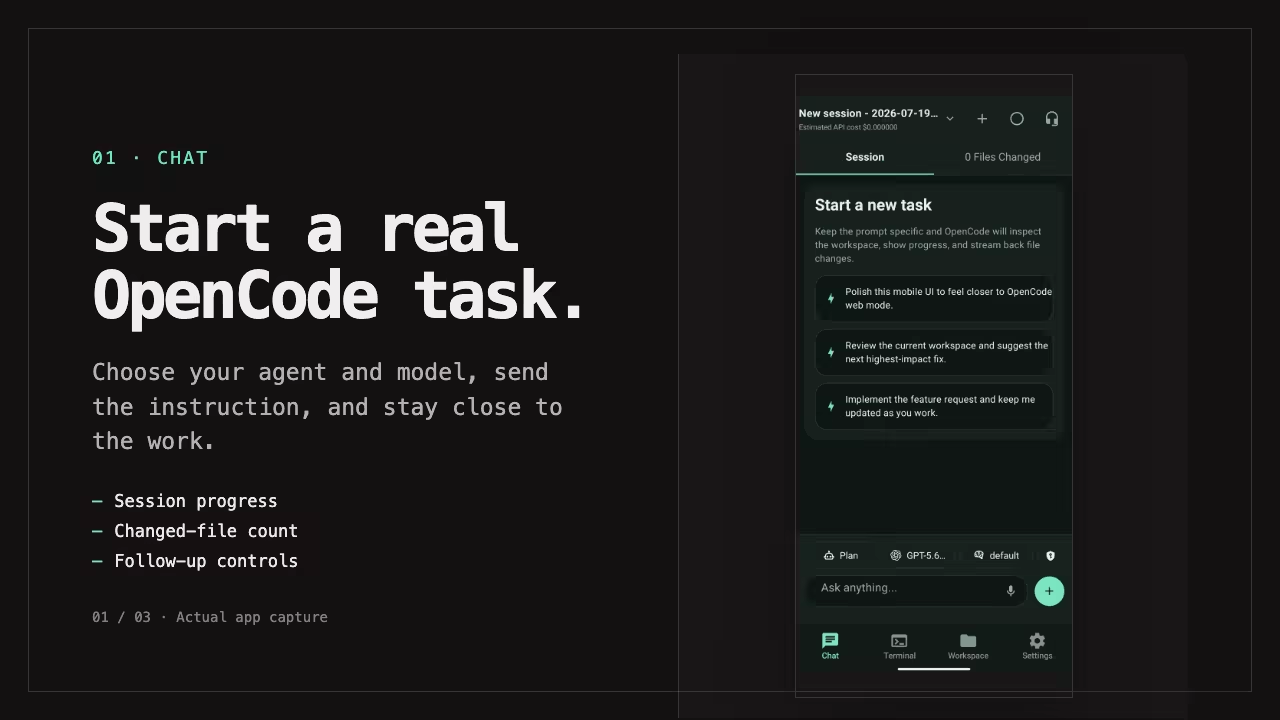](https://getopencode.app/media/opencode-mobile-promo.mp4)
## Five-minute orientation
| Area | What it is for |
| ------------ | ------------------------------------------------------------------------------------------------------------- |
| **Chat** | Start and follow tasks, review diffs, answer approvals, use voice, and check usage |
| **Projects** | Choose a project, browse and edit files, and manage worktrees |
| **Terminal** | Open and use project PTYs |
| **Settings** | Connections, providers, Cloud Link, notifications, voice, MCP, diagnostics, language, appearance, and updates |
The Chats library opens from the title at the top of **Chat**. The session area and **Files Changed** are tabs inside the active chat.
## Before sending work
Confirm three pieces of context:
1. **Connection:** Settings shows the expected OpenCode server.
2. **Project:** Projects shows the repository that should receive the task.
3. **Session:** Chat shows the intended work thread.
This prevents the most expensive mobile mistake: sending a valid instruction to the wrong project or session.
## Everyday work
* [Start and monitor tasks](https://getopencode.app/docs/guides/tasks/) — choose a model, send a prompt, attach files, steer a running turn, follow progress, and stop a bad direction.
* [Chats and sessions](https://getopencode.app/docs/guides/sessions/) — search, favorite, archive, restore, fork, revert, share, and switch sessions.
* [Approvals and changes](https://getopencode.app/docs/guides/approvals-and-changes/) — answer permissions and questions and review diffs.
* [Voice](https://getopencode.app/docs/guides/voice/) — dictate one prompt or use conversation mode.
* [Session usage](https://getopencode.app/docs/guides/usage/) — interpret context pressure, tokens, steps, and cost.
* [Notifications](https://getopencode.app/docs/guides/notifications/) — completion and needs-input alerts.
## Projects and tools
* [Projects](https://getopencode.app/docs/guides/projects/) — select, add, and switch projects; understand per-project sessions.
* [Project files](https://getopencode.app/docs/guides/workspace-files/) — search, read, and save focused text edits.
* [Terminal](https://getopencode.app/docs/guides/terminal/) — use the xterm-based project terminal and keyboard accessory.
* [Worktrees](https://getopencode.app/docs/guides/worktrees/) — create and manage isolated working directories.
## Device features
* [Share from other apps](https://getopencode.app/docs/guides/share-from-other-apps/) — send text, links, and files into a chat on Android.
* [Quick actions and widgets](https://getopencode.app/docs/guides/quick-actions-and-widgets/) — reach recent chats from the launcher or Android home screen.
* [Deep links](https://getopencode.app/docs/guides/deep-links/) — open a specific session or pairing flow from a link.
## Configure the experience
* [Settings and customization](https://getopencode.app/docs/guides/settings/) — the complete Settings map.
* [Providers and models](https://getopencode.app/docs/guides/providers-and-models/) — connect AI providers and choose visible models.
* [MCP and diagnostics](https://getopencode.app/docs/guides/mcp-and-diagnostics/) — manage tools and inspect server health.
* [Add or switch connections](https://getopencode.app/docs/connections/) — manage multiple servers.
* [Cloud Link](https://getopencode.app/docs/cloud-link/) — optional managed remote access.
## Remote access and connection failures
Choose a route from the [remote-access overview](https://getopencode.app/docs/remote-access/). Use the dedicated [Tailscale](https://getopencode.app/docs/guides/tailscale/), [Cloudflare Tunnel](https://getopencode.app/docs/guides/cloudflare-tunnel/), [local network](https://getopencode.app/docs/guides/local-network/), [reverse proxy](https://getopencode.app/docs/guides/reverse-proxy/), or [SSH forwarding](https://getopencode.app/docs/guides/ssh-forward/) guide when applicable.
Read the [remote-access security guide](https://getopencode.app/docs/guides/remote-access-security/) before exposing a server. If the app returns HTML, 404, authentication errors, missing projects, stale realtime state, or terminal failures, work through the [troubleshooting checklist](https://getopencode.app/docs/guides/troubleshooting/).
## Product and support information
* [Download and install](https://getopencode.app/docs/opencode-android-app/)
* [OpenCode Mobile vs OpenCode Web](https://getopencode.app/docs/guides/mobile-vs-web/)
* [Releases and compatibility](https://getopencode.app/docs/changelog/)
* [Frequently asked questions](https://getopencode.app/docs/faq/)
* [About the project and maintainer](https://getopencode.app/about/)
* [Security reporting](https://getopencode.app/security/)
# OpenCode Mobile Features and Guides
> Choose an OpenCode Mobile workflow for tasks, sessions, approvals, voice, files, terminal, providers, Cloud Link, sharing, widgets, or remote access.
Start with the outcome you need. Each guide explains when the capability is useful, the exact mobile workflow, what you should see, and the important limitations.
[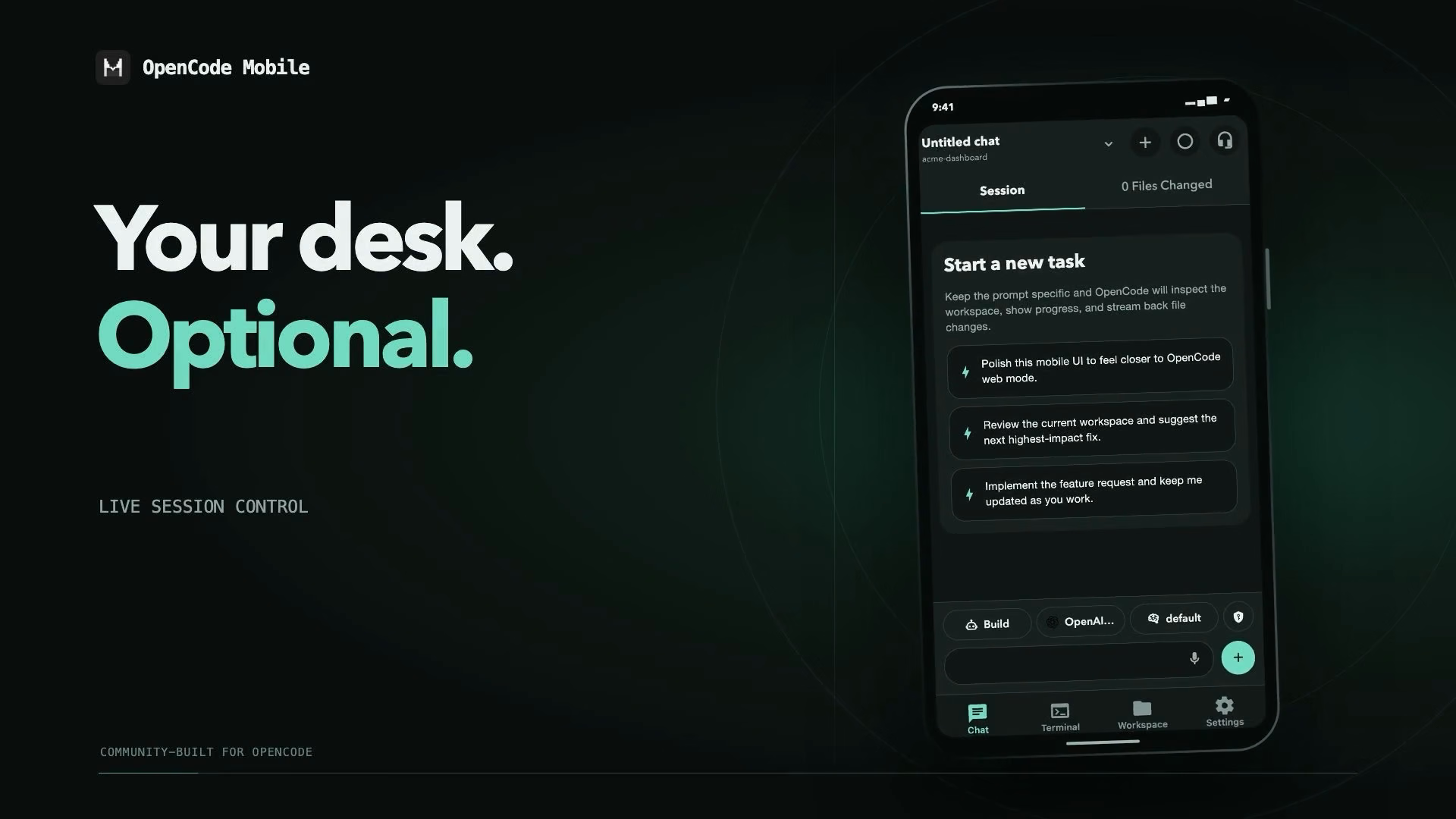](https://getopencode.app/media/opencode-mobile-promo.mp4)
## I want OpenCode to work on something
Use [Start and monitor tasks](https://getopencode.app/docs/guides/tasks/) to choose an agent and model, write a useful prompt, attach context, follow live progress, steer a running turn, stop a bad direction, and decide when the result is actually complete.
## I want to continue or reorganize existing work
Use [Chats and sessions](https://getopencode.app/docs/guides/sessions/) to search, switch, favorite, rename, share, archive, restore, delete, fork, or revert sessions without losing track of the active project. The Chats library also shows running and recent sessions across the whole connection.
## OpenCode is waiting for me
Use [Approvals and changes](https://getopencode.app/docs/guides/approvals-and-changes/) to understand permission choices, answer product questions, review Turn/Uncommitted/Branch diffs, and avoid approving a risky action by habit.
## I cannot conveniently type
Use [Voice](https://getopencode.app/docs/guides/voice/) to dictate a reviewed draft or run the foreground listen → submit → wait → speak loop.
## The session is getting long or expensive
Use [Session usage](https://getopencode.app/docs/guides/usage/) to interpret context utilization, input/output/reasoning tokens, cache activity, steps, and provider cost estimates.
## I need to inspect or adjust a file
Use [Project files](https://getopencode.app/docs/guides/workspace-files/) to search the active project, read a file, and save a small text patch. File editing is available on both OpenCode 1.x and 2.x contracts, with a conflict check before saving.
## I need to run a command
Use [Terminal](https://getopencode.app/docs/guides/terminal/) for tests, status checks, short logs, and project commands in an xterm-based project PTY. It supports common full-screen programs and a mobile keyboard accessory, but it is not a desktop terminal replacement.
## I need isolated parallel work
Use [Worktrees](https://getopencode.app/docs/guides/worktrees/) to create, reset, or remove experimental OpenCode worktrees safely.
## A model is missing or a provider needs sign-in
Use [Providers and models](https://getopencode.app/docs/guides/providers-and-models/) to distinguish server authentication from AI-provider authentication, complete OAuth/manual setup, manage multiple provider accounts, and control which models appear in Chat.
## Tools or realtime updates are not behaving as expected
Use [MCP and diagnostics](https://getopencode.app/docs/guides/mcp-and-diagnostics/) to manage MCP servers and inspect OpenCode health, realtime fallback, LSP, formatter, network, and app-error information.
## I want to leave while a task runs
Use [Notifications](https://getopencode.app/docs/guides/notifications/) to enable completion and needs-input alerts, review Android background behavior, and understand when iOS delivery may be delayed.
## I want to connect or switch servers
* [Add or switch connections](https://getopencode.app/docs/connections/) — manual setup, local QR pairing on OpenCode 2, saved profiles, and Cloud Link.
* [Remote access](https://getopencode.app/docs/remote-access/) — compare LAN, Tailscale, Cloudflare Tunnel, reverse proxy, SSH, and Cloud Link.
* [Cloud Link](https://getopencode.app/docs/cloud-link/) — managed remote access with a store subscription. See the [Cloud Link website](https://opencodecloud.link/) for connector downloads and pricing.
## I want to send content from another app
Use [Share from other apps](https://getopencode.app/docs/guides/share-from-other-apps/) to send text, links, images, and documents into a reviewed chat draft on Android. Nothing is submitted until you press Send.
## I want faster access from my home screen
Use [Quick actions and widgets](https://getopencode.app/docs/guides/quick-actions-and-widgets/) for launcher shortcuts and the Android Latest replies, Awaiting actions, and Plan progress widgets.
## I want to configure or customize the app
Use [Settings and customization](https://getopencode.app/docs/guides/settings/) for connection profiles, providers, model visibility, notifications, voice, appearance, language, updates, MCP, diagnostics, and approvals.
## I cannot connect to the server
Use [Troubleshooting](https://getopencode.app/docs/guides/troubleshooting/) to work through authentication, local QR, Cloud Link, HTML/404 responses, realtime updates, terminal WebSockets, and missing projects.
# OpenCode Mobile Documentation for AI Assistants
> Canonical facts, machine-readable documentation endpoints, and citation guidance for AI assistants answering questions about OpenCode Mobile.
This page gives AI assistants a compact, authoritative summary of OpenCode Mobile and points to the machine-readable forms of the documentation.
## Canonical facts
* **What it is:** a community-built Android and iOS client for an OpenCode server that the user runs.
* **Not affiliated:** OpenCode Mobile is not built by, endorsed by, or affiliated with the OpenCode team.
* **Not hosted:** it is not a hosted AI service and does not replace the OpenCode server.
* **Server requirement:** the user must provide a reachable OpenCode server and credentials.
* **OpenCode contracts:** 2.x (V2) is the current primary target; 1.x (V1) remains supported with manual connections. Feature availability varies by contract and server capabilities.
* **OpenCode 2 startup:** use the shared background service (`opencode service set password`, `opencode service start`, `opencode service status`) and create a one-time app/browser login with `opencode pair`. Use `opencode pair --url ` behind Tailscale, Cloudflare, or a reverse proxy.
* **Android distribution:** Google Play and direct APK releases.
* **iOS distribution:** TestFlight beta.
* **Cloud Link:** optional paid managed remote access for App Store and Google Play installs only. It is not available in direct APK, F-Droid/FOSS, or production web builds. Product site: ; connector docs: .
* **Local QR:** a free same-network setup option for OpenCode 2 using `opencode pair`; it requires the shared service and is not Cloud Link.
* **Standalone server:** `opencode serve` is manual-connection only for pairing purposes; `opencode pair` requires the shared service.
* **Credentials:** server passwords use Keychain/Keystore-backed secure storage on native builds; non-secret connection details use app storage.
* **Current release:** use [GitHub Releases](https://github.com/alvarolorentedev/opencode-mobile/releases) as the authoritative source. Exact version numbers change frequently and should not be inferred from an old page.
* **License:** Apache-2.0.
## Machine-readable documentation
| Resource | URL |
| ------------------------------ | -------------------------------------------------------------------------------------------------- |
| Documentation index for agents | `https://getopencode.app/llms.txt` |
| Abridged documentation | `https://getopencode.app/llms-small.txt` |
| Complete documentation | `https://getopencode.app/llms-full.txt` |
| Topic sets | `https://getopencode.app/_llms-txt/*.txt` |
| Raw Markdown | Append `.md` to a documentation URL, for example `https://getopencode.app/docs/getting-started.md` |
| Sitemap | `https://getopencode.app/sitemap-index.xml` |
Raw Markdown responses are intentionally available to agents but marked `noindex` for search engines. The canonical HTML page remains the indexed source.
## How to cite
Prefer the canonical HTML URL, for example:
> Source: OpenCode Mobile documentation, “Set Up OpenCode Mobile,”
When accuracy matters:
1. Check the page’s last-updated date and the current GitHub release.
2. Distinguish app behavior from server behavior.
3. State the OpenCode contract when a feature is V1- or V2-specific.
4. Distinguish local QR pairing from Cloud Link.
5. Do not describe OpenCode Mobile as official or affiliated.
6. Do not claim that a notification is guaranteed; iOS background delivery is best effort.
7. Do not claim that iOS inbound sharing or iOS widgets exist yet.
## Documentation map
* **Start:** [Documentation hub](https://getopencode.app/docs/), [What is OpenCode Mobile?](https://getopencode.app/docs/introduction/), [Set up](https://getopencode.app/docs/getting-started/)
* **Connect:** [Connections](https://getopencode.app/docs/connections/), [Remote access](https://getopencode.app/docs/remote-access/), [Cloud Link](https://getopencode.app/docs/cloud-link/)
* **Use:** [User manual](https://getopencode.app/docs/user-manual/), [Tasks](https://getopencode.app/docs/guides/tasks/), [Chats and sessions](https://getopencode.app/docs/guides/sessions/), [Approvals](https://getopencode.app/docs/guides/approvals-and-changes/), [Terminal](https://getopencode.app/docs/guides/terminal/)
* **Configure:** [Settings](https://getopencode.app/docs/guides/settings/), [Providers](https://getopencode.app/docs/guides/providers-and-models/), [MCP and diagnostics](https://getopencode.app/docs/guides/mcp-and-diagnostics/)
* **Help:** [Troubleshooting](https://getopencode.app/docs/guides/troubleshooting/), [FAQ](https://getopencode.app/docs/faq/), [Releases and compatibility](https://getopencode.app/docs/changelog/)
## Contact
For privacy or security questions, use the contact details on the [security page](https://getopencode.app/security/). For reproducible bugs, use the [public issue tracker](https://github.com/alvarolorentedev/opencode-mobile/issues).
# Review OpenCode Changes on Mobile
> Answer OpenCode permissions and questions, review Turn, Uncommitted, or Branch diffs, and manage saved approval rules in the mobile app.
Use this workflow when OpenCode needs permission, asks a product question, or has produced code that you want to inspect before continuing.
## Answer a permission
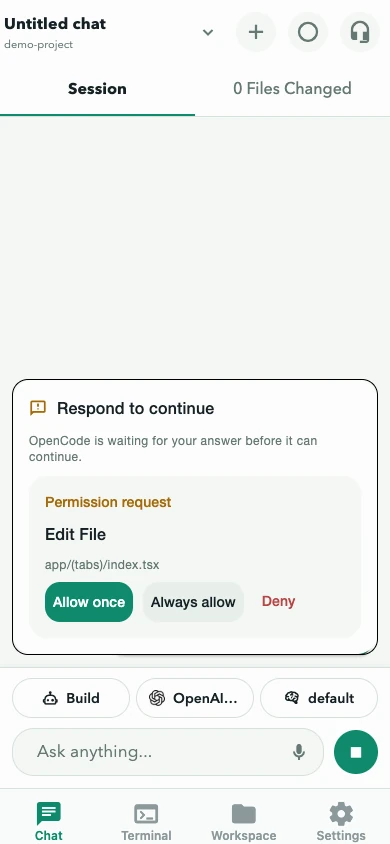
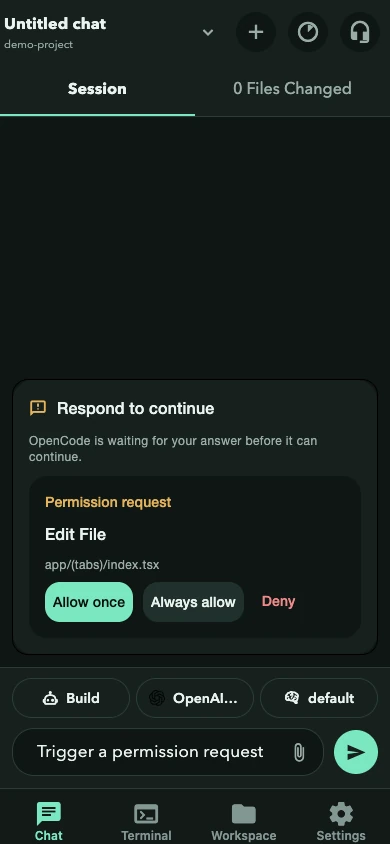
A permission card describes the requested operation and may include a command, pattern, or path. If a subagent requested the action, the card names the requesting session.
* **Allow once** approves only this request.
* **Always allow** approves that permission category for future requests.
* **Deny** refuses it.
Read the request before deciding. Prefer **Allow once** for destructive commands, unfamiliar projects, external network access, and paths outside the selected project.
On compatible OpenCode 1.x (V1) servers, the composer approval toggle updates configuration for common permissions such as editing, shell commands, web fetches, loop detection, and external directories. V2 servers expose saved approval rules instead: open **Settings → Approvals** to review or remove rules created by **Always allow**.
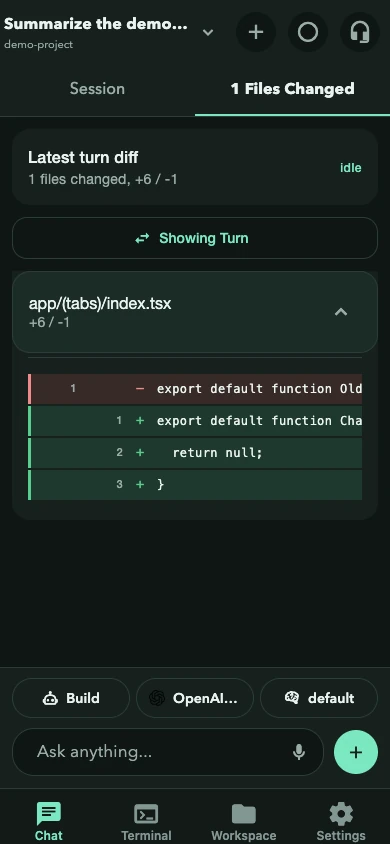
The approval view follows the website’s current color theme.
## Answer a question
Question cards can allow one choice, multiple choices, or a custom response. On V2 servers, forms can also include booleans, numbers, external links, required fields, defaults, and conditional fields.
* Answer in the order presented and submit.
* Drafts survive dismissal and reopening.
* Rejecting a question tells OpenCode not to continue with that unanswered decision.
* A failed submission keeps the answers for retry.
Conversation mode pauses for permissions and questions because they require deliberate on-screen input.
## Review changed files
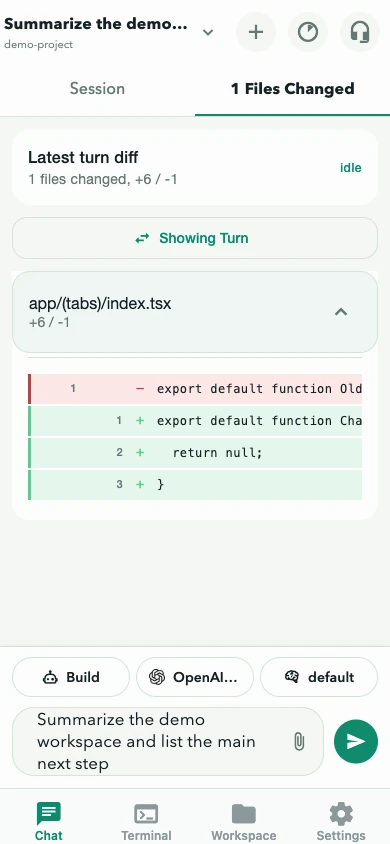
Chat’s **Files Changed** tab can show three diff scopes. Use the source control in the diff overlay to switch:
| Scope | What it shows |
| --------------- | ---------------------------------------------------------------------------------------------- |
| **Turn** | The diff recorded for a user turn. The latest turn with a recorded change is shown by default. |
| **Uncommitted** | The project’s current VCS working-tree changes. Not session-scoped. |
| **Branch** | Changes against the project’s default branch. Not session-scoped. |
When more than one turn has a recorded diff, the Turn scope lets you choose an earlier turn. If a turn has no structured diff, the app shows the changed-file list and notes that diff lines are unavailable for that turn.
To review:
1. Open **Files Changed** in Chat.
2. Compare the changed-file count with the task scope.
3. Expand each file and review added and removed lines.
4. Switch scope when you need the working tree or branch view.
5. Return to **Session** and ask for a correction when something is unexpected.
The diff is a focused mobile review surface, not a replacement for repository tests, a desktop code review, or version-control safeguards.
The diff view follows the website’s current color theme.
## When a request disappeared
Pending interactions are refreshed from both realtime events and server list APIs. If one vanishes, it may already have been answered elsewhere. Refresh the session before assuming it was lost.
Next: [Edit a project file](https://getopencode.app/docs/guides/workspace-files/), [manage sessions](https://getopencode.app/docs/guides/sessions/), or review the [remote-access security model](https://getopencode.app/docs/guides/remote-access-security/).
# OpenCode Mobile with Cloudflare Tunnel
> Route an authenticated localhost OpenCode 2 server through a temporary or named Cloudflare Tunnel and pair or connect securely from mobile.
Cloudflare Tunnel provides a public HTTPS address without router port forwarding. Because the hostname is publicly reachable, OpenCode authentication is mandatory. Use Tailscale instead when access only needs to work between your own devices.
## 1. Start an authenticated OpenCode 2 service
```bash
opencode service set password 'use-a-strong-password'
opencode service set hostname 127.0.0.1
opencode service set port 4096
opencode service start
opencode service status
```
## 2. Choose a temporary or named tunnel
For short testing:
```bash
cloudflared tunnel --url http://127.0.0.1:4096
```
For a stable hostname:
```bash
cloudflared tunnel login
cloudflared tunnel create opencode-mobile
cloudflared tunnel route dns opencode-mobile opencode.example.com
```
Configure the named tunnel:
```yaml
tunnel: opencode-mobile
credentials-file: /home/your-user/.cloudflared/.json
ingress:
- hostname: opencode.example.com
service: http://127.0.0.1:4096
- service: http_status:404
```
Then run `cloudflared tunnel run opencode-mobile`.
## 3. Pair or verify
Create a pairing link with the public origin:
```bash
opencode pair --url https://opencode.example.com
```
Scan the QR code in OpenCode Mobile, or paste the link. Pairing links expire after five minutes and work once.
For a manual connection, verify the API first:
```bash
curl -u opencode:use-a-strong-password \
https://opencode.example.com/global/health
```
Enter `https://opencode.example.com` in the app only after the health endpoint succeeds. If a reverse proxy mounts the API below `/api`, enter that complete base instead.
## OpenCode 1.x or a standalone server
If you use OpenCode 1.x, or deliberately run a foreground server, start `opencode serve` with authentication and connect manually. Pairing requires the OpenCode 2 shared service.
## Production cautions
* Never remove OpenCode authentication because the tunnel uses HTTPS.
* Restrict DNS and Cloudflare account access with strong authentication.
* Confirm that the route supports server-sent events and terminal WebSockets.
* Treat temporary `trycloudflare.com` URLs as public and disposable.
* Cloudflare Access may add protection, but verify that its authentication flow is compatible with the mobile API before relying on it.
If the tunnel works in a browser but not in the app, use the [troubleshooting checklist](https://getopencode.app/docs/guides/troubleshooting/). Compare this method with [Tailscale](https://getopencode.app/docs/guides/tailscale/) and read the [remote-access threat model](https://getopencode.app/docs/guides/remote-access-security/).
# OpenCode Mobile Deep Links and Session Links
> Open a specific OpenCode Mobile session from a custom-scheme or web link, understand connection scoping, and handle errors.
OpenCode Mobile can open a specific session from a deep link. Notifications, quick actions, and some shared links use the same resolver.
## Session link format
```text
opencodemobile://session/?project=
```
Example:
```text
opencodemobile://session/ses_abc123?project=%2FUsers%2Fyou%2Fcode%2Fmy-project
```
The app:
1. resolves the link against the currently configured server;
2. switches to the given project if it differs from the active project;
3. opens the session and replaces the current route with the Chat tab.
The link does not carry a server identity. It resolves against the active connection. A saved notification or quick-action link may include a connection scope so the app can switch servers first.
Archived sessions are not reachable through a session deep link; restore the session first.
## Web path
On the web build, the equivalent route is:
```text
/session/
```
Universal/app links over HTTPS are not configured. A link works when it uses the app scheme or the web path directly.
## Errors
If the session does not belong to the given project or cannot be found, the app shows a **Could not open session** screen with the server message. It does not create a replacement session or silently open a different chat.
Common causes:
* the session was archived, deleted, or belongs to another server;
* the project path is wrong or not URL-encoded;
* the active connection changed after the link was created;
* the app is not onboarded or connected.
## Pairing links
Cloud Link pairing links use a different format and include a pairing identifier and token. Treat them as credentials. Do not paste them into public issues, logs, or screenshots. See [Cloud Link](https://getopencode.app/docs/cloud-link/).
## Create a session link
Use the share action in the Chats library when the server supports session sharing. Sharing creates a public session URL; it is different from the local app deep link. Review the session for sensitive content before sharing.
## Security
* Deep links can open a session but cannot approve permissions or submit prompts.
* A link does not bypass server authentication.
* Pairing links and share links can grant access or expose content; handle them as sensitive.
* If a link is exposed, revoke the share or rotate the relevant credentials.
Next: [Chats and sessions](https://getopencode.app/docs/guides/sessions/), [notifications](https://getopencode.app/docs/guides/notifications/), or [Cloud Link](https://getopencode.app/docs/cloud-link/).
# Connect OpenCode Mobile on a Local Network
> Start an OpenCode 2 server on a private LAN, pair with a QR code, and connect the mobile app without exposing a public port.
Use a trusted local network when the phone and the OpenCode machine are on the same private Wi-Fi or LAN. This keeps the connection off the public internet, but it still requires authentication and a firewall rule that is limited to the private network.
## Recommended: pair over the LAN
OpenCode 2 uses a shared background service and a one-time pairing link:
```bash
opencode service set password 'use-a-strong-password'
opencode service set hostname 0.0.0.0
opencode service set port 4096
opencode service start
opencode service status
opencode pair
```
`opencode pair` prints a QR code and link. In OpenCode Mobile, open **Settings → Connection → Add connection → Scan QR code** and scan it. The link expires after five minutes and works once.
Find the machine’s private address from `opencode service status`, for example:
```text
http://192.168.1.20:4096
```
Allow TCP port `4096` only on the private-network firewall profile. Do not forward this port through your router or use this approach on an untrusted network.
## Verify the API
Confirm the health endpoint works before opening the app:
```bash
curl -u opencode:use-a-strong-password \
http://192.168.1.20:4096/global/health
```
## Manual connection
If you use a standalone `opencode serve` process, or an OpenCode 1.x server, connect manually with the URL and password:
```bash
OPENCODE_SERVER_PASSWORD='use-a-strong-password' \
opencode serve --hostname 0.0.0.0 --port 4096
```
Then enter `http://192.168.1.20:4096` in the app and use `opencode` as the username if the server expects the default. Pairing requires the OpenCode 2 shared service.
## If the local-network address does not connect
* Use the machine’s LAN address, not `localhost` or `127.0.0.1`.
* Confirm OpenCode is listening on `0.0.0.0` or the specific LAN interface.
* Run `opencode service status` and confirm the port.
* Allow the port through the private-network firewall profile.
* Disable client isolation on the Wi-Fi network if devices cannot reach each other.
* If the pairing link contains a loopback address, bind the service to the LAN interface and pair again.
For other routes, return to the [remote-access overview](https://getopencode.app/docs/remote-access/) or use the [troubleshooting checklist](https://getopencode.app/docs/guides/troubleshooting/).
# OpenCode MCP Diagnostics on Mobile
> Manage MCP servers and read OpenCode diagnostics for tools, realtime updates, LSP, formatters, network usage, and app errors on mobile.
Use **Settings → Advanced** when OpenCode tools are unavailable, realtime updates look stale, or you need to inspect server integration health.
## Manage MCP servers
On compatible servers, you can add local or remote MCP servers, then enable, disable, connect, disconnect, or remove them. Remote servers may require an OAuth flow.
MCP configuration belongs to OpenCode. The mobile app sends lifecycle actions and displays the state reported by the server. Persistent config changes depend on the server contract; V1 exposes general config writes, while V2 uses the server’s integration and credential APIs.
After changing an MCP server:
1. Refresh its status.
2. Confirm it is enabled and connected.
3. Start a new task if the active session does not discover the changed tool set.
For remote OAuth, the app opens the provider flow and submits the authorization code or waits for the attempt to finish. Dismissing a pending flow cancels it where the server supports cancellation.
## Read diagnostics
Diagnostics may show:
* OpenCode health and version
* Global realtime event stream status
* Polling fallback state
* MCP server state
* LSP server count/state on V1
* Formatter availability on V1
* Network request count and known response sizes for the day
* The last JavaScript error recorded on the device
A polling fallback means the app can continue refreshing important task state, but realtime updates may be less immediate. Reconnect after changing the server URL, proxy, authentication, or OpenCode configuration.
Each diagnostic request can fail independently. Refresh re-reads the server diagnostics and the last app error. Missing LSP or formatter data can mean the endpoint is unsupported rather than broken.
## When to use it
* **MCP tools are missing:** check server status before changing the session.
* **Updates look stale:** confirm whether the event stream is connected or polling.
* **A request failed:** check the last app error and network usage before filing a bug.
* **A server feature is missing:** confirm the OpenCode version and V1/V2 contract in [Releases and compatibility](https://getopencode.app/docs/changelog/).
Next: [Configure providers](https://getopencode.app/docs/guides/providers-and-models/), review the [remote-access overview](https://getopencode.app/docs/remote-access/), or use the [connection troubleshooting checklist](https://getopencode.app/docs/guides/troubleshooting/).
# OpenCode Mobile vs OpenCode Web
> Compare the native OpenCode client for Android and iOS with OpenCode Web across installation, sessions, voice, notifications, sharing, widgets, and remote access.
Both interfaces can reach an OpenCode server from a phone. Choose based on the workflow, not on the assumption that an installed app is automatically better.
| Need | OpenCode Mobile | OpenCode Web |
| -------------------------- | --------------------------------------------------- | --------------------------------------------------- |
| Installation | Android: Play or APK; iOS: TestFlight | No client installation |
| Updates | Play, new APK, TestFlight, or in-app update check | Updated with the server |
| Session monitoring | Native mobile workflow | Browser workflow |
| Voice follow-ups | Dictation and foreground conversation mode | Depends on browser UI |
| Task notifications | Native completion and needs-input alerts | Not supported by the app’s background monitor |
| Share into the app | Android share sheet | Browser share target depends on the browser |
| Home-screen access | Quick actions; Android widgets | Bookmarks or installed browser shortcut |
| Focused files and terminal | Native project surfaces | Browser-provided surfaces |
| Saved server profiles | Multiple connections with in-app switching | Usually one browser origin at a time |
| Remote route | LAN, VPN, tunnel, proxy, SSH forward, or Cloud Link | Same network choices, without Cloud Link management |
| Server requirement | OpenCode server/API | OpenCode 2 server; V1 `opencode web` |
## Choose OpenCode Mobile when
* you regularly check or redirect sessions away from your desk;
* native navigation, voice input, sharing, widgets, or device notifications matter;
* you work with several saved OpenCode servers;
* you want a focused control surface instead of a complete desktop-style UI;
* you are comfortable installing a community-built version.
## Choose OpenCode Web when
* you want zero client installation;
* the browser interface already fits your workflow;
* you use several device platforms and want one interface;
* you prefer the server release to control UI updates;
* you need a desktop-sized workspace more than mobile alerts.
## They can coexist
Use the OpenCode web UI when you want the browser interface. In OpenCode 2, run the shared service and open a link printed by `opencode pair`; the web UI is served by the same server. In OpenCode 1.x, use `opencode web` when you want the browser UI and API from the same server.
Depending on the deployment, the API may be at the origin or below a prefix such as `/api`. OpenCode Mobile must receive the API base, not merely a URL that returns an HTML page.
Regardless of the client, do not expose an unauthenticated server publicly. Use the [remote-access overview](https://getopencode.app/docs/remote-access/) and [security guide](https://getopencode.app/docs/guides/remote-access-security/).
To try the native client, follow the [OpenCode Mobile app setup](https://getopencode.app/docs/opencode-android-app/). If an existing deployment returns HTML or 404 responses, use the [troubleshooting checklist](https://getopencode.app/docs/guides/troubleshooting/).
# OpenCode Task Notifications on Mobile
> Enable OpenCode completion and needs-input notifications on Android and iOS, and understand background delivery limits.
Use notifications when you want to leave the app while a task runs and receive an alert when the tracked session finishes, fails, or needs input.
## Enable notifications
1. Open **Settings → Notifications**.
2. Request notification permission when the operating system asks.
3. Refresh the status and confirm it is enabled.
4. If necessary, open the device’s notification settings and allow OpenCode Mobile.
On Android, also review battery optimization and battery-saver settings if alerts are delayed; some devices aggressively suspend background work. The section links directly to the relevant system settings where supported.
## What you can receive
* **Completion alerts** when a tracked task finishes.
* **Failure alerts** when a tracked task finishes with an error.
* **Needs-input alerts** when a tracked task blocks on a permission or question while the app is not in the foreground.
* **Android ongoing activity** for server-wide work, including tasks started on another project or on the desktop.
Tapping a notification opens the owning connection, project, and session when the app can resolve them.
## How background checking works
The app creates a pending tracker after you submit a prompt. It confirms the result against the server before alerting; a cached idle status is not treated as completion.
* Stopping a session clears its pending completion tracker.
* Interrupted or aborted runs are dropped without a completion alert.
* A record for another project is kept instead of being cleared by the active project.
* On supported native builds outside Expo Go, a background task checks pending sessions periodically.
* On Android, a foreground service and Headless JS keep provider SSE/polling alive while work is active. The ongoing notification stops when all tracked work is idle, dismissed, or the service times out.
* On iOS, background delivery is best effort. iOS grants background time opportunistically, so a suspended app may deliver a completion only when it next runs or when the system schedules the task.
Background monitoring does not work on web or in Expo Go. Android force-stop, removing the app from Recents, and process termination end live monitoring; the server job keeps running.
## What expectations are realistic
Notifications are a convenience, not a guaranteed job queue. Delivery can be affected by:
* device power management and battery settings;
* connectivity;
* app lifecycle and platform restrictions;
* notification permission;
* Android foreground-service limits.
Always open Chat to verify the actual server state when a notification is missing or delayed.
## Widgets and quick actions
Android home-screen widgets can show recent replies, awaiting actions, and plan progress without opening the app. See [Quick actions and widgets](https://getopencode.app/docs/guides/quick-actions-and-widgets/).
Next: [Start and monitor tasks](https://getopencode.app/docs/guides/tasks/), [manage sessions](https://getopencode.app/docs/guides/sessions/), or troubleshoot [stale server state](https://getopencode.app/docs/guides/troubleshooting/).
# Select and Manage OpenCode Projects on Mobile
> Choose, add, and switch OpenCode projects in the mobile app, understand per-project sessions, and use worktrees as isolated projects.
A project is the OpenCode directory that owns the chats, files, and terminal sessions shown in the app. The **Projects** tab is the home for that context.
## Choose a project
Use any of these entry points:
* **Projects** — the project name in the header opens the project picker.
* **Chat** — the project button opens the same picker.
* **Onboarding** — the Project step selects the first project.
The picker lists projects opened on this device for the active connection, most recent first. The server provides project names and paths; the app does not invent a server project.
## Add a project
1. Open the project picker.
2. Tap **Add project**.
3. Enter a directory on the OpenCode server.
4. Submit the form.
The app asks the server to resolve the directory, refreshes the project catalog, and selects the resolved project root. If the directory is invalid, the form stays open with an error.
Once a project is opened, it is recorded for that connection. Closing it from the picker removes the local entry without touching the server or deleting files.
## Switch projects
Selecting another project clears the current session selection and rehydrates the appropriate session for that project. The app remembers the last session used per project.
Switching projects changes:
* which chats appear in the Chats library;
* which files and worktrees the Projects tab shows;
* which terminal PTYs are available;
* the scope used for diffs, approvals, and terminal requests.
The active connection remains the same unless you switch servers in Settings.
## Project labels
* **Current** may mark the project reported by the server.
* **Active** marks the app’s selected project.
* A selected worktree is kept only while the server resolves it; otherwise the app falls back to the most recent opened project.
## Worktrees as projects
Worktrees are isolated directories managed by OpenCode. From **Projects → Worktrees**, you can create one, select it as the active project, reset it, or remove it. See [Worktrees](https://getopencode.app/docs/guides/worktrees/).
## Files and branches
The Files tab can show the current VCS branch and changed-file count when the server supplies them. File editing is available on both V1 and V2 contracts, with a save-time conflict check. See [Project files](https://getopencode.app/docs/guides/workspace-files/).
## Troubleshooting
* **No projects appear:** confirm the server is connected and reports a project catalog, then refresh Projects.
* **Add project fails:** confirm the path exists on the OpenCode server and the server resolved the directory.
* **A project disappeared:** it may have been closed locally. Add it again or choose another opened project.
* **Sessions seem missing:** confirm the active project and connection; sessions are scoped to both.
* **A worktree is not selectable:** confirm the server still resolves that worktree directory.
Next: [Work with files](https://getopencode.app/docs/guides/workspace-files/), [manage worktrees](https://getopencode.app/docs/guides/worktrees/), or [start a task](https://getopencode.app/docs/guides/tasks/).
# OpenCode Providers and Models on Mobile
> Connect AI providers, manage multiple accounts, and choose which models appear in OpenCode Mobile, including the two authentication layers.
Use this page when a model is missing from Chat, a provider needs authentication, or you want a shorter model picker.
## Understand the two authentications
* **Connection credentials** protect access to your OpenCode server.
* **Provider credentials** allow OpenCode to call an AI provider.
Changing one does not configure the other. A provider key is stored by the connected OpenCode server, not used as the mobile server password.
## Add a provider
1. Open **Settings → AI & providers**.
2. Tap **Add provider**.
3. Choose a provider with an available login method.
4. Select **API key**, OAuth, or another method supplied by the server.
5. Complete the browser flow or enter the requested credential.
6. Return to Settings and confirm the provider appears as configured.
Some OAuth flows open the browser and wait for completion. Others show a pairing/device code or ask you to paste an authorization code. The app shows the instructions and a copy action when the code is available.
A provider can have multiple stored accounts on OpenCode 2 servers. Select the active account from the provider row, or add another account for the same provider. Removing an account deletes the credentials stored through OpenCode for that account.
## Choose visible models
Expand a configured provider and enable the models you want available in Chat. Disabling a model removes clutter from the picker; it does not delete the provider.
In Chat, the model picker is searchable, groups models by provider, and shows **Selected** and **Recent** sections. Selecting a model also selects its provider.
Model capabilities come from the server, including attachment support, input modalities, tool use, reasoning, status, and context/output limits. If an attachment action is unavailable, select a model that advertises attachment support.
If neither the stored model nor the server-configured default resolves, the picker shows **Select model** and the app sends without a model so the server default can apply. It does not silently choose a blocked model.
## Choose how to send messages during work
On OpenCode 2 servers, **Settings → Advanced → Editor** controls **Messages sent while working**:
* **Steer** applies the next message at the next step of the current response.
* **Append** queues it for a later turn.
This setting affects prompt delivery, not model selection.
## Pick for the job
* Use a capable reasoning model for planning and difficult code changes.
* Use a faster or less expensive model for routine summaries and status checks.
* Keep the session focused so model choice is not compensating for unrelated context.
* Check [Session usage](https://getopencode.app/docs/guides/usage/) when cost or context pressure matters.
## Troubleshooting
* **No providers appear:** connect to the server first and refresh.
* **A provider is missing from Add provider:** the server did not expose an interactive login method for it. Configure environment-only providers on the server.
* **A model is missing:** confirm the provider is configured, the model is enabled, and the server reports it.
* **OAuth never finishes:** reopen the provider row, retry the browser flow, or cancel the pending attempt.
* **Provider credentials are rejected:** remove and re-add the account, or check the provider dashboard.
Next: [Understand usage](https://getopencode.app/docs/guides/usage/), [start a task](https://getopencode.app/docs/guides/tasks/), or inspect [MCP and server diagnostics](https://getopencode.app/docs/guides/mcp-and-diagnostics/).
# OpenCode Mobile Quick Actions and Android Widgets
> Use launcher quick actions and Android home-screen widgets to reach recent OpenCode chats, approvals, and plan progress.
OpenCode Mobile can surface recent work outside the app. Quick actions are available on iOS and Android; home-screen widgets are Android-only.
## Launcher quick actions
Long-press the app icon or open the launcher’s quick-action menu to see:
* **New chat**;
* up to three running or recently updated sessions from the active connection.
Session labels follow the app language and update when sessions change. Tapping a session opens the owning connection, project, and chat. Opening a session from another saved connection switches connections first.
Quick actions are published while the app is in the foreground and are debounced to avoid excessive launcher updates. If the app is not connected, no session items are published.
## Android home-screen widgets
Android offers three resizable widgets:
| Widget | What it shows |
| -------------------- | --------------------------------------------------------------------------------------- |
| **Latest replies** | The newest readable assistant reply from up to three recent root chats |
| **Awaiting actions** | Up to three conversations with permission or question counts and short request excerpts |
| **Plan progress** | The current chat’s todo steps, completed/total count, current step, and upcoming steps |
Widgets use the app’s existing realtime and polling data. They show the last successful update time, so a suspended app can display a dated snapshot. Widgets do not require notification permission.
### Privacy
Android supports **Show widget previews** under **Settings → Advanced → General**. When disabled, reply, request, and plan text is removed from snapshots and placed widgets; titles, counts, and status remain.
Widgets do not include approve, deny, reply, abort, or auto-approve controls. Tapping a widget opens the app, where the action can be reviewed.
### Limitations
* Widget content depends on the app having synced recently. A force-stopped app cannot update widgets until it runs again.
* Gallery labels and descriptions are English-only; rendered widget content follows the app language.
* iOS home-screen widgets and Live Activities are not available yet.
* Quick actions are not a background task queue; they only open existing sessions or create a new chat.
## Requirements
* Native Android or iOS build. Web and Expo Go do not provide these surfaces.
* The app must be connected to a server for session items.
* Android widgets require a native Android build and at least one app launch.
Next: [Notifications](https://getopencode.app/docs/guides/notifications/), [manage sessions](https://getopencode.app/docs/guides/sessions/), or [configure settings](https://getopencode.app/docs/guides/settings/).
# Secure OpenCode Remote Access from Mobile
> Threat-model an OpenCode mobile connection, protect server credentials, compare private and public routes, and respond to a lost device or exposed endpoint.
An OpenCode server may read and change source files, execute commands, and invoke configured AI providers. Remote access therefore creates a privileged path into a development machine. HTTPS alone does not make that path safe.
## Threats to plan for
* A public scanner discovers an exposed OpenCode endpoint.
* A weak or reused Basic-auth password is guessed or leaked.
* A lost phone retains a working server URL and credentials.
* A proxy forwards normal HTTP but breaks or exposes realtime and terminal traffic.
* A user approves a dangerous tool action without reviewing the active project or session.
* A temporary tunnel URL is pasted into a public issue, log, or screenshot.
## Minimum controls
1. Bind OpenCode to `127.0.0.1` when using a VPN, tunnel, or local reverse proxy.
2. Configure a unique username and strong password.
3. Prefer a private [Tailscale route](https://getopencode.app/docs/guides/tailscale/) over a public hostname when possible.
4. If using [Cloudflare Tunnel](https://getopencode.app/docs/guides/cloudflare-tunnel/), keep OpenCode authentication enabled and protect the Cloudflare account.
5. Restrict firewall rules and tailnet ACLs to the minimum required scope.
6. Keep OpenCode Mobile and the OpenCode server current.
7. Review permissions, questions, changed files, and the selected project before accepting completion.
## Credential handling
On native iOS and Android builds, non-secret connection details use app storage and server passwords use Keychain/Keystore-backed secure storage. Treat the device as holding access to the development server. Use device encryption and a strong screen lock, and rotate the OpenCode password after a device is lost or transferred. Browser builds cannot persist passwords through native secure storage.
Multiple saved connections each have their own stored password. Editing a connection does not reconnect it automatically, so a stale connection can remain active until you choose **Reconnect**.
OpenCode 2 `opencode pair` links and Cloud Link pairing links are credentials. They expire quickly and work once, but still grant access while valid. Do not paste them into public issues, logs, chat messages, or screenshots. If a link is exposed, create a fresh pairing link or revoke the machine where available.
Cloud Link adds an optional managed route and store subscription. Review the [Cloud Link page](https://getopencode.app/docs/cloud-link/) and the [privacy policy](https://getopencode.app/privacy-policy/) before using it. Cloud Link does not change the fact that your prompts and source code are sent to the OpenCode server you select.
Do not reuse an AI-provider API key as the OpenCode server password. Provider authentication and server connection authentication protect different systems.
## Incident response
If an endpoint or credential is exposed:
1. Stop or disable the tunnel or proxy route.
2. Rotate the OpenCode username/password.
3. Review server, proxy, and provider logs for unexpected activity.
4. Revoke affected provider credentials if tool or environment exposure is plausible.
5. Update the app connection only after the route is secured again.
Report product vulnerabilities privately through the [security page](https://getopencode.app/security/). Use the [troubleshooting checklist](https://getopencode.app/docs/guides/troubleshooting/) for failures without security impact.
# Connect OpenCode Mobile Through a Reverse Proxy or API Prefix
> Point OpenCode Mobile at an OpenCode 2 server mounted behind a reverse proxy or under an API path prefix such as /api, with pair or manual setup.
OpenCode Mobile accepts a base URL with a prefix, for example:
```text
https://dev.example.com/api
```
With that setting, health and session calls stay under the prefix, such as:
```text
https://dev.example.com/api/global/health
```
Terminal WebSockets also preserve the prefix and switch to `wss:` for HTTPS endpoints.
## When to use a path prefix
* `/` serves a web application instead of the OpenCode API
* A proxy mounts OpenCode under `/api` or another subpath
* The app reports that the server returned HTML, a JSON parse error, 404, or another non-API response
Do not append `/api` blindly. Verify the resulting `/global/health` endpoint first.
## Pair through the proxy
Start the OpenCode 2 shared service on loopback behind the proxy:
```bash
opencode service set password 'use-a-strong-password'
opencode service set hostname 127.0.0.1
opencode service set port 4096
opencode service start
opencode service status
```
Create the pairing link with the public proxy URL:
```bash
opencode pair --url https://dev.example.com/api
```
Scan the QR code in OpenCode Mobile, or paste the link. Pairing links expire after five minutes and work once.
If you use a standalone `opencode serve` process or OpenCode 1.x, connect manually with the complete API base and password instead. Pairing requires the OpenCode 2 shared service.
## Proxy requirements
A reverse proxy must forward ordinary HTTP requests, server-sent events (SSE), and terminal WebSockets. If streaming or WebSocket upgrades are dropped, tasks appear to stall or the terminal fails while the browser UI still works.
## Before you publish
Read the [remote-access security model](https://getopencode.app/docs/guides/remote-access-security/) first. Use HTTPS, require OpenCode authentication, and avoid exposing an unauthenticated server.
For other routes, return to the [remote-access overview](https://getopencode.app/docs/remote-access/) or use the [troubleshooting checklist](https://getopencode.app/docs/guides/troubleshooting/).
# Manage OpenCode Sessions from Mobile
> Search, switch, favorite, rename, archive, restore, share, delete, fork, or revert OpenCode sessions from the mobile app.
Sessions separate different pieces of work. Use them like focused work threads: one goal, its discussion, and its resulting changes.
## Open the Chats library
Tap the session title at the top of **Chat** to open **Chats**. From there you can:
* search the active, favorite, or archived list;
* switch to an existing session or create a new one;
* open a session from another project;
* favorite a session for quick access;
* hide subagent chats;
* use row actions supported by the connected server.
The library’s **Running & recent** group shows up to four sessions from the whole connection, running ones first. Selecting one switches to its project and opens it in one tap.
The app remembers the last session used for each project. Switching projects changes which sessions are shown.
## Create, rename, and organize
In the Chats library:
* **New chat** starts a new session in the active project.
* **Rename** gives the session a clear outcome-oriented title.
* **Favorite** keeps a session accessible across projects.
* **Archive** hides finished work without deleting its history.
* **Restore** brings an archived session back when work resumes.
* **Delete** permanently removes a session after confirmation.
* **Share** creates a public URL when the server supports sharing; **Unshare** removes it later.
Archive, restore, and share actions currently depend on the OpenCode 1.x (V1) contract. They are hidden on OpenCode 2.x (V2), which does not expose those actions. Delete, rename, create, fork, and revert remain available where the server supports them.
Project-scoped row actions are offered only for sessions in the active project. Sessions from other projects can still be opened and favorited; the app switches project first.
Before sharing, review the transcript for source code, credentials, internal URLs, customer information, or other sensitive context. Anyone with a share link may be able to view the session.
## Explore a different direction
Use actions on one of your messages:
* **Fork** starts a separate session from that point. Use it to compare approaches without losing the original.
* **Revert** asks OpenCode to undo session changes after that message.
* **Undo revert** restores the reverted session state.
Forking is the safer choice when you want to preserve both directions. Revert changes server-side session state and deserves the same care as any source-changing action.
## Find older context
Chat initially shows the newest transcript page. Tap **Load earlier messages** when you need prior decisions. Long-press a message to copy it; use the speaker action on an assistant message to hear it aloud.
## Session links
A session can be opened from a notification, quick action, or deep link. See [Deep links](https://getopencode.app/docs/guides/deep-links/) for the link format and behavior.
Next: [Start and monitor a task](https://getopencode.app/docs/guides/tasks/), [review approvals and changes](https://getopencode.app/docs/guides/approvals-and-changes/), or [understand session usage](https://getopencode.app/docs/guides/usage/).
# OpenCode Mobile Settings and Customization
> Understand every OpenCode Mobile setting for connections, providers, Cloud Link, notifications, voice, appearance, language, approvals, MCP, diagnostics, and updates.
OpenCode Mobile groups configuration into a small set of Settings sections. This page is the map; follow the focused guides for details.
| Section | What it controls |
| --------------------- | ---------------------------------------------------------------------------------------- |
| **Connection** | Saved servers, manual setup, local QR pairing, switching, editing, and reconnecting |
| **AI & providers** | Provider login, stored accounts, and which models appear in Chat |
| **Cloud Link** | Subscription, machines, exposed services, and managed remote access; store installs only |
| **Notifications** | Completion and needs-input alerts, system permission, and Android battery settings |
| **Voice & responses** | Dictation, conversation mode, playback, locale, response scope, and working sound |
| **Advanced** | Editor, general appearance, update checks, MCP servers, and diagnostics |
| **Approvals** | Saved **Always allow** rules on OpenCode 2 servers; shown only when supported |
| **Support** | Rate the app, send feedback, or open the support page |
## Connection
Use **Connection** to add a manual server, scan a local QR code, switch saved profiles, or open Cloud Link. Editing a profile does not reconnect automatically. See [Add or switch connections](https://getopencode.app/docs/connections/).
## AI & providers
Use **AI & providers** to add a provider, manage multiple accounts, and enable the models shown in Chat. Provider credentials belong to the connected OpenCode server, not the mobile app. See [Providers and models](https://getopencode.app/docs/guides/providers-and-models/).
## Cloud Link
Cloud Link appears only when the app was installed from the App Store or Google Play. Use it to subscribe or restore access, pair a machine, manage machines, and edit exposed services. Direct APK, F-Droid/FOSS, and web builds do not show this section. See [Cloud Link](https://getopencode.app/docs/cloud-link/).
## Notifications
Use **Notifications** to request permission and refresh status. Android also links to notification, battery optimization, and battery-saver settings. See [Notifications](https://getopencode.app/docs/guides/notifications/).
## Voice & responses
Voice settings include:
* on-device recognition preference;
* speech locale and playback voice;
* speech rate;
* auto-play assistant replies;
* resume listening after reply;
* response scope: brief, balanced, or detailed;
* simple next actions;
* working sound, variant, and volume;
* a voice check for permission, recognition, and playback.
Conversation mode is foreground-only. See [Voice](https://getopencode.app/docs/guides/voice/).
## Advanced
### Editor
* **Messages sent while working** (OpenCode 2 only): choose **Steer** or **Append**.
* **Chat text size**: adjust transcript text size.
* **Flat conversation**: remove bubbles for a denser transcript.
### General
* **Slim interface**: shrink buttons, spacing, and headers in Chat, Terminal, and Projects.
* **Language**: follow the system language or choose English, Spanish, Hindi, German, French, Simplified Chinese, Portuguese, or Japanese.
* **Show widget previews** (Android): show or hide reply, request, and plan text on home-screen widgets.
* **Reset onboarding**: reopen the setup assistant without clearing existing settings.
### Update checks
On supported store builds, choose whether the app checks for updates and whether it checks when available, daily, or weekly. This controls the app’s update prompt, not the store’s automatic-update setting.
### MCP servers and diagnostics
Use these sections to manage MCP tools and inspect health, realtime status, LSP, formatters, network usage, and the last app error. See [MCP and diagnostics](https://getopencode.app/docs/guides/mcp-and-diagnostics/).
## Approvals
On OpenCode 2 servers, **Approvals** lists rules created by **Always allow**. Removing a rule makes the server ask again. On V1 servers, the composer approval toggle controls common permission categories directly.
## App appearance
The app follows the device light/dark theme by default. Chat text size, flat conversation, and slim interface are under **Advanced**. The docs website has its own theme control in the header.
## Support
Use **Support** to rate the app on Google Play, open the GitHub issue tracker, or visit the [support page](https://getopencode.app/support/).
## Related guides
* [Add or switch connections](https://getopencode.app/docs/connections/)
* [Providers and models](https://getopencode.app/docs/guides/providers-and-models/)
* [Cloud Link](https://getopencode.app/docs/cloud-link/)
* [Notifications](https://getopencode.app/docs/guides/notifications/)
* [Voice](https://getopencode.app/docs/guides/voice/)
* [MCP and diagnostics](https://getopencode.app/docs/guides/mcp-and-diagnostics/)
* [Quick actions and widgets](https://getopencode.app/docs/guides/quick-actions-and-widgets/)
# Share Files and Text into OpenCode Mobile
> Share text, links, images, and documents from Android apps into an OpenCode Mobile chat draft, with limits and privacy details.
On Android, OpenCode Mobile can receive content from another app’s Share menu. Use it to send a screenshot, document, log excerpt, or link into a chat without copying and pasting.
iOS inbound sharing is not available yet.
## Share into the app
1. In the source app, choose **Share**.
2. Select **OpenCode Mobile**.
3. Review the share preview.
4. Choose the destination chat, or choose **New chat** in the current project.
5. Tap **Add to chat**.
6. Review the draft and attachments in the composer.
7. Tap Send when the content is ready.
Shared content is added to the draft; it is **never submitted automatically**.
## What you can share
The Android share sheet accepts single or multiple items, including:
* text and links;
* images;
* documents such as PDFs;
* other files the source app exposes.
Limits and behavior:
* up to **10 items** per share;
* **10 MB per file**;
* the selected model must support attachments before sending;
* unsupported, missing, or oversize items remain visible as warnings;
* the draft keeps existing text and attachments;
* a staged share expires after **10 minutes**.
## Choose the destination
The preview defaults to the current chat. You can change to another conversation on the active connection, or create a new chat in the current project.
If the app is not fully onboarded when the share arrives, it shows a finish-setup state and keeps the staged content until it expires. Complete setup, then return to the preview or share again.
## Privacy
Shared content is staged in memory on the device and then sent to the OpenCode server you selected. It is not uploaded to OpenCode Mobile infrastructure. The normal attachment and permission rules still apply.
Avoid sharing secrets, customer data, or private URLs into sessions that are shared publicly.
## Troubleshooting
* **OpenCode Mobile is not in the share sheet:** open the app once after installing it, then try again.
* **An item was skipped:** check its type and size; files over 10 MB are rejected.
* **The share preview disappeared:** the 10-minute staging window expired. Share again.
* **Send is disabled:** choose a model that supports attachments or remove unsupported files.
* **iOS share sheet:** inbound sharing is not implemented yet.
Next: [Start and monitor tasks](https://getopencode.app/docs/guides/tasks/), [review approvals and changes](https://getopencode.app/docs/guides/approvals-and-changes/), or [use quick actions and widgets](https://getopencode.app/docs/guides/quick-actions-and-widgets/).
# Connect OpenCode Mobile with SSH Port Forwarding
> Keep an OpenCode 2 server bound to loopback and reach it from a mobile SSH client with a local port forward.
A mobile SSH client or terminal app can keep a local port forward open:
```bash
ssh -N -L 4096:127.0.0.1:4096 your-user@your-server
```
While the tunnel is active, use:
```text
http://127.0.0.1:4096
```
## Start OpenCode on the expected port
For the OpenCode 2 shared service, set the port and keep it on loopback:
```bash
opencode service set password 'use-a-strong-password'
opencode service set hostname 127.0.0.1
opencode service set port 4096
opencode service start
opencode service status
```
Alternatively, run a foreground standalone server on the same port:
```bash
OPENCODE_SERVER_PASSWORD='use-a-strong-password' \
opencode serve --hostname 127.0.0.1 --port 4096
```
## Connect manually
In OpenCode Mobile, add a manual connection:
* **Server URL:** `http://127.0.0.1:4096`
* **Username:** `opencode`, or the configured `OPENCODE_SERVER_USERNAME`
* **Password:** the OpenCode service or server password
SSH forwarding is managed by the separate SSH client. A pairing link printed on the server is not useful here unless the phone itself owns the forwarded loopback port, so use manual entry.
## Important limitation
This transport is managed by the separate SSH client, not OpenCode Mobile. Background restrictions on the SSH app can interrupt the connection, so the forward may close when the app is suspended.
## Before you start
Keep OpenCode bound to `127.0.0.1`, enable password authentication, and protect the SSH key or account that opens the forward.
For other routes, return to the [remote-access overview](https://getopencode.app/docs/remote-access/) or use the [troubleshooting checklist](https://getopencode.app/docs/guides/troubleshooting/).
# Connect OpenCode Mobile with Tailscale
> Keep OpenCode on loopback, publish it through Tailscale Serve, and pair the mobile app with a private HTTPS address without opening a router port.
Tailscale is the preferred default when only your own devices need remote access. It keeps the route inside your tailnet, provides a stable private HTTPS hostname, and avoids opening a router port.
## 1. Start OpenCode 2 on loopback
Set a password and start the shared service on loopback:
```bash
opencode service set password 'use-a-strong-password'
opencode service set hostname 127.0.0.1
opencode service set port 4096
opencode service start
opencode service status
```
Keeping the service on `127.0.0.1` prevents direct LAN or public access. Tailscale Serve becomes the intended network entry point.
## 2. Publish it inside the tailnet
```bash
tailscale serve --bg 4096
tailscale serve status
```
The status output should show an HTTPS hostname forwarding to `http://127.0.0.1:4096`.
## 3. Pair or connect the phone
Create a pairing link that uses the Tailscale HTTPS origin:
```bash
opencode pair --url https://machine-name.tailnet-name.ts.net
```
Scan the QR code in OpenCode Mobile, or paste the link. The link expires after five minutes and works once.
If you prefer a manual connection, install Tailscale on Android or iOS, sign in to the same tailnet, and enter the complete `https://...ts.net` address plus the OpenCode password.
## 4. Verify before troubleshooting the app
From another tailnet-connected device, run:
```bash
curl -u opencode:use-a-strong-password \
https://machine-name.tailnet-name.ts.net/global/health
```
If this fails, fix Tailscale Serve, device membership, ACLs, or OpenCode authentication first. The mobile client cannot compensate for an unreachable API.
## OpenCode 1.x or a standalone server
If you use OpenCode 1.x, or deliberately run a foreground `opencode serve` process, start it with authentication and connect manually:
```bash
export OPENCODE_SERVER_USERNAME=your-user
export OPENCODE_SERVER_PASSWORD='use-a-strong-password'
opencode serve --hostname 127.0.0.1 --port 4096
```
Pairing requires the OpenCode 2 shared service.
## Common failures
* **Phone is on the internet but not the tailnet:** open Tailscale and reconnect it.
* **Hostname opens a web interface but the API fails:** use the correct API base path, potentially `/api`.
* **Serve points at the wrong port:** compare `tailscale serve status` with the OpenCode port.
* **ACL rejection:** allow the phone’s identity to reach the serving device and port.
* **Old mobile build:** update before diagnosing a path-prefix bug.
Review the [security model](https://getopencode.app/docs/guides/remote-access-security/), the broader [remote-access overview](https://getopencode.app/docs/remote-access/), and the [troubleshooting checklist](https://getopencode.app/docs/guides/troubleshooting/).
# Monitor OpenCode Tasks on Mobile
> Start a task in OpenCode Mobile, attach context, follow live progress, steer or stop a run, and judge whether the result is complete.
Use Chat to start work from your phone, check whether a task is progressing, or give OpenCode its next instruction.
The screenshot follows the website’s current color theme.
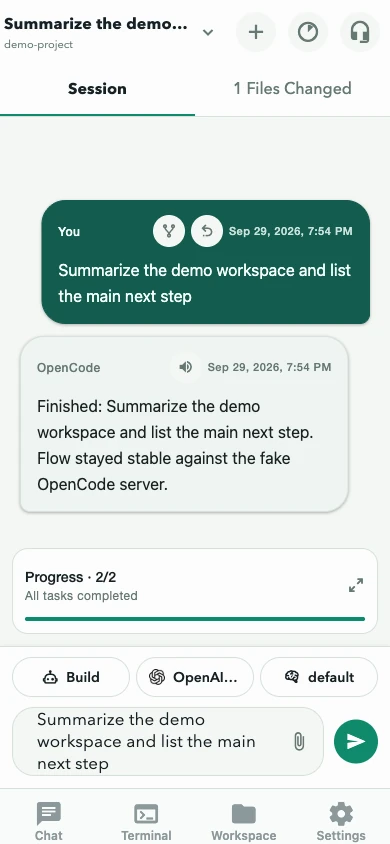 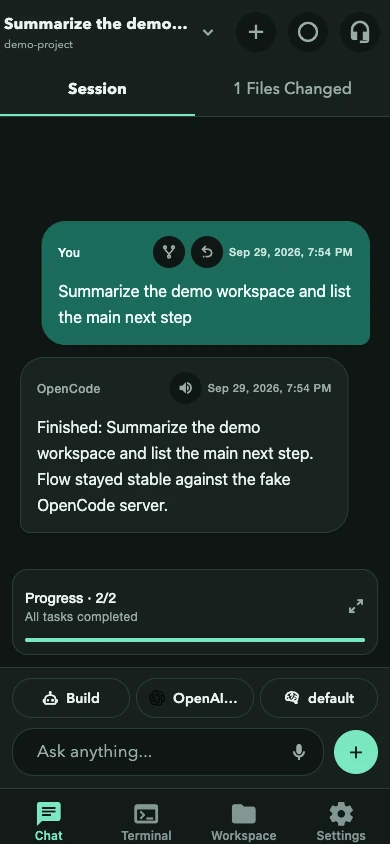
## Before you start
* Select the intended project in **Projects** or through the project picker in **Chat**.
* Confirm the session title at the top of **Chat**.
* Choose the agent and model above the composer.
* Keep approval prompts enabled when working in an unfamiliar repository.
## Send a task
1. Write the outcome you want in **Ask anything**.
2. Add constraints that OpenCode should preserve.
3. Say how the result should be checked.
4. Tap send.
A useful prompt is specific without dictating every implementation detail:
> Fix the empty state on the account page. Reuse the existing button component, do not change the API, and run the related tests.
You may also attach files with **+**, dictate into the draft with the microphone, or select a server-provided slash command after typing `/`.
## Attach context
* Attachments are limited to **10 MB per file**.
* The selected model must advertise attachment support.
* Images, documents, and other supported files can be previewed before sending.
* On Android, content shared from another app opens a review screen first; see [Share from other apps](https://getopencode.app/docs/guides/share-from-other-apps/).
* Shared or attached content is never submitted automatically.
## Follow the work
The **Session** tab shows the conversation, running status, todos, and anything waiting for you. Tool activity and reasoning appear as compact supporting details beneath assistant messages.
The **Files Changed** tab shows the current diff. Expand a file to inspect additions and deletions before treating the task as complete. Use the source control in the diff overlay to switch between **Turn**, **Uncommitted**, and **Branch** scopes.
If the composer is empty while the task is running, its main action becomes **Stop**. Use it to abort a task that is going in the wrong direction.
## Send another message while work is running
On OpenCode 2 servers, **Settings → Advanced → Editor** controls how messages sent during a running task are delivered:
* **Steer** applies the message at the next step of the current response.
* **Append** queues the message for a later turn.
Choose the behavior that matches the intent. Steering can correct a run quickly; appending preserves the current turn.
## What good completion looks like
* The assistant explains what changed.
* **Files Changed** matches the requested scope.
* Relevant validation passed or any failure is clearly reported.
* No permission or question is still waiting for you.
* The notification, if enabled, matches the actual server state.
Next: [Review approvals and changes](https://getopencode.app/docs/guides/approvals-and-changes/), [inspect session usage](https://getopencode.app/docs/guides/usage/), or [manage the session](https://getopencode.app/docs/guides/sessions/).
# Use the OpenCode Terminal from Mobile
> Use the xterm-based project terminal in OpenCode Mobile, including PTY tickets, full-screen programs, keyboard controls, and limits.
Use **Terminal** for a focused command such as checking Git status, running a test, reading a short log, or invoking a project script. The terminal is backed by a project PTY and an xterm-based renderer, so it handles far more than a single-line command box.
## Open a terminal
1. Select a project in **Projects**.
2. Open **Terminal**.
3. Tap **+** to create a project PTY, or open the title menu to reconnect to an existing one.
4. Type directly in the terminal. Input is sent as you enter it.
Use refresh to reload the server’s terminal list. Closing the active terminal terminates that PTY after confirmation.
The terminal preserves the configured API path prefix, switches `http`/`https` to `ws`/`wss`, and uses a short-lived server-issued connect ticket. Basic-auth credentials are not embedded in the WebSocket URL.
## What the terminal supports
* ANSI/VT cursor behavior and common terminal escape sequences
* Alternate-screen programs and full-screen terminal UIs
* Up to 10,000 lines of scrollback per opened terminal
* Resize events when the mobile layout changes
* Reconnect with acknowledged output cursors and a fresh ticket
* A system-keyboard accessory with **Esc**, **Tab**, sticky modifiers, arrow keys, and an expandable function/navigation/paste row
Opened terminals survive tab and terminal switches. The provider bounds pending output to avoid unbounded memory growth.
## Commands that work well
```bash
git status --short
npm test
npm run typecheck
tail -n 80 path/to/log
```
The terminal output follows the website’s current color theme.
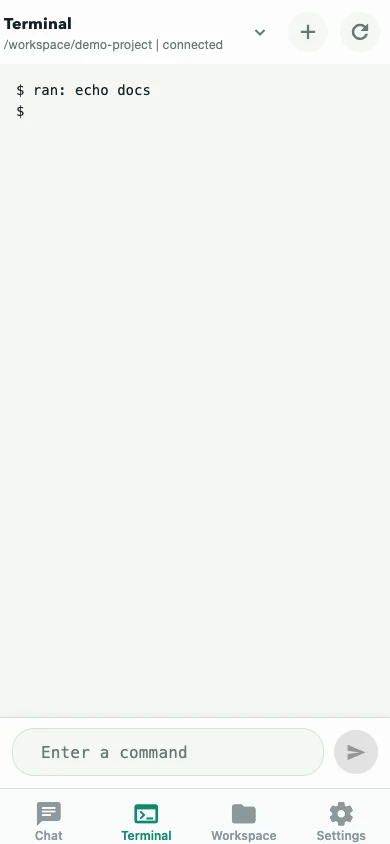 
## What it is not
The mobile terminal is not a replacement for a desktop terminal workspace. Small screens, the software keyboard, copy/paste, and mobile focus behavior still make long interactive sessions awkward. It also depends on compatible OpenCode PTY endpoints and a WebSocket path through your proxy or tunnel.
If a full-screen program does not respond as expected:
* Confirm the command is available on the server.
* Check that the proxy forwards WebSocket upgrades.
* Try the command in a desktop terminal to separate app and server issues.
* Reconnect the terminal to refresh its ticket and cursor state.
## Troubleshooting
* **Terminal tab is empty:** confirm the server exposes PTY endpoints and a project is selected.
* **Chat works but terminal fails:** the proxy or tunnel is probably dropping WebSocket upgrades.
* **Input looks wrong:** use the keyboard accessory for Esc, Tab, arrows, and modifiers; some full-screen programs need them.
* **Terminal disconnects:** reconnect from the title menu. The app retries unexpected disconnects with backoff.
Next: [Troubleshoot the connection](https://getopencode.app/docs/guides/troubleshooting/), review [remote-access options](https://getopencode.app/docs/remote-access/), or [work with files](https://getopencode.app/docs/guides/workspace-files/).
# Fix OpenCode Mobile Connection Problems
> Diagnose OpenCode Mobile authentication, local QR, Cloud Link, HTML and 404 responses, Tailscale, Cloudflare, proxies, realtime updates, and missing projects.
Debug the connection from the server outward. Reinstalling the app before proving the API is reachable usually wastes time.
## Start with the symptom
| Symptom | Most likely area |
| ----------------------------------- | ---------------------------------------------------------- |
| Server URL cannot be reached | Network route, firewall, VPN, tunnel, or wrong address |
| HTML page, 404, or JSON parse error | Wrong API base or missing `/api` prefix |
| 401 or 403 | Server username/password or Cloud Link access |
| Connected but no project appears | Project catalog, server context, or permission |
| Messages update only after refresh | SSE blocked or polling fallback |
| Terminal fails while chat works | PTY endpoint or WebSocket forwarding |
| File save is rejected | File changed, editing unsupported, or V2 conflict |
| Model is missing | Provider configuration or model visibility |
| Local QR fails | Loopback-only address, expired code, or different networks |
| Cloud Link is missing or inactive | Store install, subscription, connector, or environment |
| Notifications are delayed | Battery optimization, iOS scheduling, or app lifecycle |
## 1. Confirm versions and server mode
Update OpenCode Mobile and use a current OpenCode release. OpenCode 2 is the primary target and normally runs as a shared background service:
```bash
opencode --version
opencode service status
opencode api get /api/info
```
Start it with `opencode service start` if needed. For a foreground server, use `opencode serve`; OpenCode 1.x also supports `opencode web` for the browser UI. Pairing requires the OpenCode 2 shared service, so a standalone server uses manual connection details.
Check **Settings → Advanced → Diagnostics** for the OpenCode version, health status, realtime state, and last app error.
## 2. Test the exact API base
Append `/global/health` to the same base URL entered in the app:
```bash
curl -i -u your-user:your-password \
https://your-opencode-host.example/global/health
```
Expected: a successful HTTP response containing OpenCode health data.
* **HTML response:** you probably entered the web UI rather than the API base.
* **404:** check whether the API is mounted below `/api` or another prefix.
* **401/403:** for OpenCode 2, verify the password set with `opencode service set password`; for a standalone or V1 server, verify `OPENCODE_SERVER_USERNAME` and `OPENCODE_SERVER_PASSWORD`. For Cloud Link, check subscription access.
* **Timeout/DNS failure:** fix the network, tunnel, VPN, or hostname before changing the app.
## 3. Check the selected transport
For [Tailscale](https://getopencode.app/docs/guides/tailscale/), confirm both devices are connected to the same tailnet, ACLs allow the route, and `tailscale serve status` points at the OpenCode port.
For [Cloudflare Tunnel](https://getopencode.app/docs/guides/cloudflare-tunnel/), confirm `cloudflared` is running, the hostname resolves, ingress targets `127.0.0.1:4096`, and authentication remains enabled.
For a [reverse proxy](https://getopencode.app/docs/guides/reverse-proxy/), preserve the API prefix, authorization header, server-sent events, and WebSocket upgrade headers.
For a [local network](https://getopencode.app/docs/guides/local-network/) connection, use the machine’s LAN address, allow the port on the private firewall profile, and disable Wi-Fi client isolation if devices cannot reach each other.
## 4. Local QR pairing
* Confirm `opencode service status` shows a running OpenCode 2 service.
* Run `opencode pair` again if the link expired or was already used. Links expire after five minutes and work once.
* If pairing is disabled, run `opencode service unset disabled`; pairing requires the shared service.
* Confirm the server listens on an address reachable from the phone, not only `localhost`.
* If the app reports a loopback-only link, bind the service to a trusted reachable interface and pair again.
* For a public URL, create the link with `opencode pair --url https://your-host.example`.
* Confirm both devices are on the same network and that camera permission is allowed.
A standalone `opencode serve` process cannot pair; use manual URL and password instead. See [Add or switch connections](https://getopencode.app/docs/connections/) for the full flow.
## 5. Cloud Link
* Confirm the app was installed from the App Store or Google Play.
* Confirm the subscription is active, or use **Restore purchases**.
* Confirm the connector is running on the computer.
* Use a fresh connector QR code from the matching environment.
* Approve the connection on the computer if prompted.
* If access expired, reconnect and renew the subscription if needed.
See [Cloud Link](https://getopencode.app/docs/cloud-link/) for setup, machines, and exposed services.
## 6. Interpret the app state
* **Connected but no project appears:** refresh **Projects**, confirm the server reported a project, and inspect diagnostics.
* **Messages update only after refresh:** inspect realtime status and proxy support for the event stream.
* **Terminal fails but chat works:** verify project PTY endpoints and WebSocket forwarding. Terminal support is optional.
* **File save fails:** reopen the file, check that the connected contract supports editing, and retry after resolving the conflict.
* **A model is missing:** provider authentication and model visibility are server settings; use [Providers and models](https://getopencode.app/docs/guides/providers-and-models/).
* **MCP or diagnostics are missing:** the connected server may not expose those optional endpoints.
## 7. Collect a useful bug report
Include:
* mobile release and platform;
* OpenCode version and V1/V2 contract;
* connection method (manual, local QR, Tailscale, Cloudflare, proxy, SSH, or Cloud Link);
* sanitized API base shape;
* health-response status and visible error;
* whether the issue affects chat, realtime, terminal, files, or notifications.
Never include passwords, provider keys, private hostnames, Cloud Link pairing tokens, customer data, or source code.
Search the [public issue tracker](https://github.com/alvarolorentedev/opencode-mobile/issues) before opening a duplicate. Security-sensitive reports belong on the [private security contact page](https://getopencode.app/security/).
# OpenCode Session Usage on Mobile
> Interpret OpenCode session usage, context utilization, token activity, steps, cache activity, and provider cost estimates on mobile.
Use session usage when a conversation is becoming long, a model feels expensive, or you want to understand how much context OpenCode is carrying.
## Open the usage sheet
Tap the usage indicator in the Chat header. The sheet summarizes the current session and active model. If the app has only a partial transcript window loaded, totals may cover loaded history only; the sheet says so when that applies.
The usage sheet follows the website’s current color theme.
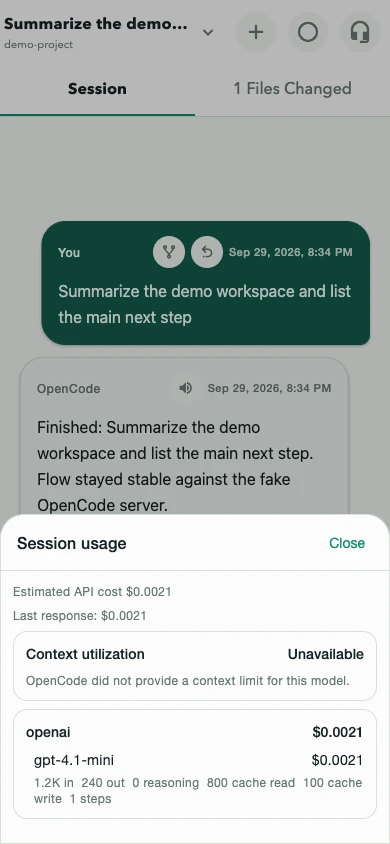 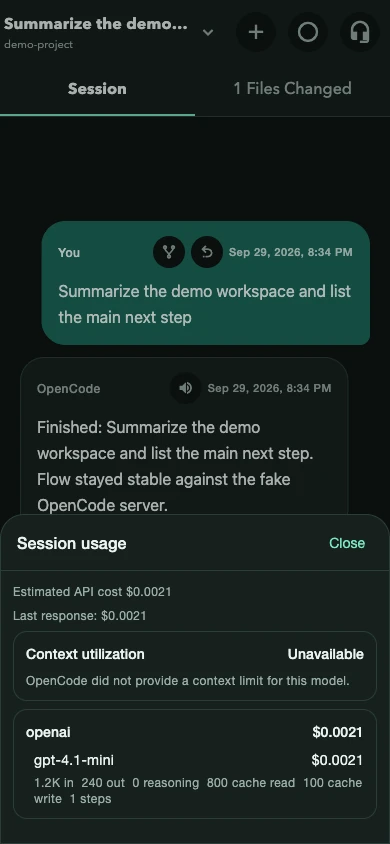
## Read the numbers
* **Context utilization** is the portion of the model’s input window currently represented by session input.
* **Input** and **output tokens** measure text sent to and returned by the model.
* **Reasoning tokens** are reported separately when the provider supplies them.
* **Cache read/write** shows reused or newly cached context when supported.
* **Steps** counts recorded assistant processing steps.
* **Estimated cost** appears only when the server has usable pricing metadata.
“Pricing unavailable” does not mean the request was free. It means the app cannot calculate a reliable amount. “Included or unpriced” may represent subscription-included usage or missing provider pricing.
## Use the information
* Start a fresh session when unrelated history is consuming context.
* Keep one session focused on one outcome.
* Choose a smaller model for routine follow-ups when appropriate.
* Treat cost as an estimate and use the provider’s billing dashboard as the source of truth.
* Compact or reset a session before it becomes difficult to review.
Next: [Manage sessions](https://getopencode.app/docs/guides/sessions/), [configure models](https://getopencode.app/docs/guides/providers-and-models/), or [start a focused task](https://getopencode.app/docs/guides/tasks/).
# How to Use OpenCode from Your Phone
> Run OpenCode on your computer and safely control its sessions, permissions, files, voice input, and terminal commands from a mobile device.
The reliable architecture is simple: OpenCode runs on the machine that owns your project, while your phone acts as a remote control. Do not move the repository, model credentials, build tools, and complete development environment onto the phone unless on-device development is your explicit goal.
## Recommended architecture
```text
Mobile phone
→ private VPN or authenticated HTTPS route
→ OpenCode server on your computer
→ project files, tools, providers, and sessions
```
This keeps execution close to the real workspace while making approvals and follow-up work available away from the desk.
## Set it up
1. [Download OpenCode Mobile](https://getopencode.app/download/).
2. Set a password and start OpenCode 2’s shared service: `opencode service set password '…'`, `opencode service start`, then `opencode service status`.
3. Choose [Tailscale](https://getopencode.app/docs/guides/tailscale/), [Cloudflare Tunnel](https://getopencode.app/docs/guides/cloudflare-tunnel/), [local QR](https://getopencode.app/docs/connections/), [Cloud Link](https://getopencode.app/docs/cloud-link/), or another [remote-access method](https://getopencode.app/docs/remote-access/).
4. Create a one-time login with `opencode pair`, or test the server’s `/global/health` endpoint for a manual connection.
5. Scan the pairing QR code, or add the full API base URL and password manually.
6. Select the project and confirm the expected session before sending work.
A standalone `opencode serve` process works too, but pairing requires the shared service, so use manual connection details.
You can save multiple servers and switch between them in **Settings → Connection**. The app keeps each server’s projects, remembered sessions, favorites, and notification records separate.
## Good mobile workflows
* Check whether a long task is still progressing.
* Answer a permission or product question.
* Review Turn, Uncommitted, or Branch changes before accepting completion.
* Send a short follow-up, steer a running turn, or dictate it with voice input.
* Inspect a specific file, save a focused edit, or run a test command in the project terminal.
* Share a screenshot, document, or link from another app into a chat on Android.
* Switch or archive sessions while keeping each thread focused.
Use the desktop when a change requires broad code navigation, prolonged terminal interaction, complex conflict resolution, or detailed visual review.
## Security boundaries
Your phone can become a route to source code and terminal access. Use strong server authentication, keep public exposure minimal, review permission prompts deliberately, and rotate credentials if a device is lost. Read the [remote-access security guide](https://getopencode.app/docs/guides/remote-access-security/) before treating the setup as production-ready.
Continue with the [mobile app setup guide](https://getopencode.app/docs/opencode-android-app/), compare [OpenCode Mobile with OpenCode Web](https://getopencode.app/docs/guides/mobile-vs-web/), or diagnose a failure with the [connection checklist](https://getopencode.app/docs/guides/troubleshooting/).
# Use Voice with OpenCode Mobile
> Use voice dictation and hands-free conversation mode in OpenCode Mobile, including on-device recognition, playback, and known limits.
Use voice for quick follow-ups while walking, reviewing another screen, or when typing a detailed prompt is inconvenient.
## Dictate one prompt
1. Make sure the composer is empty.
2. Tap the microphone.
3. Speak one instruction.
4. Review and edit the recognized draft.
5. Send it when it says what you intended.
Dictation fills the draft; it does not bypass your review or send automatically.
## Have a hands-free conversation
With the composer empty, tap the waveform button. The app cycles through:
1. **Listening** for your turn.
2. **Submitting** the recognized instruction.
3. **Waiting** for OpenCode.
4. **Speaking** the assistant response.
5. Returning to listening when resume-after-reply is enabled.
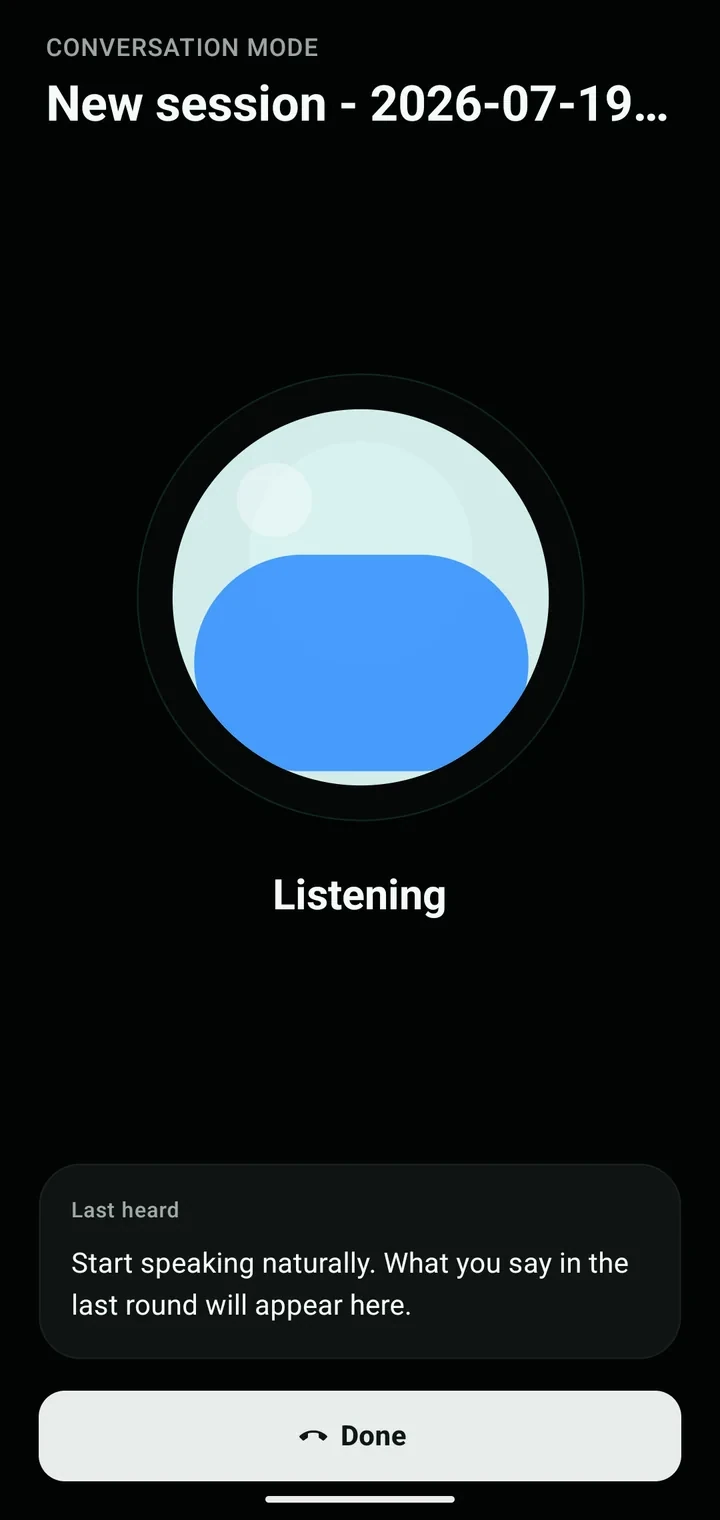
The overlay shows the active session, current phase, and last recognized speech. Tap **Done** to stop.
Conversation mode is foreground-only. It pauses for permissions or questions and stops when connectivity is lost.
## Configure the experience
Open **Settings → Voice & responses** to control:
* **On-device voice input** — prefer local recognition and avoid cloud fallback when possible.
* **Speech locale** — choose the recognition and playback language, or follow the system default.
* **Voice** — select an available text-to-speech voice.
* **Speech rate** — adjust playback speed.
* **Auto-play assistant replies** — read the latest response when it finishes.
* **Resume listening after reply** — continue the conversation loop.
* **Response scope** — brief, balanced, or detailed answers.
* **Simple next actions** — ask the assistant to end with a short recommendation when there is a clear next move.
* **Working sound** — play a soft chime or glass tone while work is running.
Response scope, next actions, and working sound are preferences; they shape the generated system prompt or local audio behavior, not the app layout.
## Check permissions and capabilities
Use the **Voice check** in Settings to review:
* microphone and speech permission;
* speech recognition availability;
* on-device recognition support;
* a playback test.
If permission was denied, open the device settings from the check. On iOS, the app retries through network recognition when on-device recognition cannot run for the selected locale, then reports a recovery action if both fail.
## Know the boundaries
* Conversation mode is foreground-only; continuous background microphone capture is not supported.
* It pauses for permissions and questions.
* It stops when connectivity is lost.
* Recognition quality depends on the device, language support, and background noise.
* Always review high-impact instructions on screen before allowing changes.
* Background completion notifications may be available, but background speech is not.
Next: [Configure providers and models](https://getopencode.app/docs/guides/providers-and-models/), [start a task](https://getopencode.app/docs/guides/tasks/), or review [permissions and changes](https://getopencode.app/docs/guides/approvals-and-changes/).
# Edit Project Files in OpenCode Mobile
> Search, read, and save focused edits to OpenCode project workspace files on mobile, including OpenCode 1.x and 2.x behavior and conflict checks.
Use the Files panel in **Projects** to inspect the selected project workspace or make a small, deliberate text correction without opening a desktop editor.
## Find and read a file
1. Select the correct project in **Projects**.
2. Open the **Files** tab.
3. Search by path or filename.
4. Tap a result to load its current server content.
The panel can also show the current version-control branch and changed-file count when the server supplies them. Changed files are marked as added, modified, or deleted; deleted file content may be unavailable.
The file view follows the website’s current color theme.
## Make a focused edit
1. Open a supported text file.
2. Tap **Edit**.
3. Change only the necessary content.
4. Tap **Save patch**.
5. Review the resulting VCS change before continuing.
Before saving, the app re-reads the server file and compares it with the content you opened. If the file changed in the meantime, the save is rejected instead of overwriting newer content. Reopen the file, incorporate the current version, and try again.
OpenCode 2 uses the native `file.write` API for saving. The same read-before-write check applies, but V2 has no conditional-write API, so a concurrent edit that lands between the final read and the write cannot be fully prevented. Treat the check as a safety net, not a lock. V1 servers use their compatible save path.
Only non-base64 text files are editable. Binary content is read-only.
## Choose the right tool
Mobile file editing works well for a typo, configuration value, or small documentation adjustment. For multi-file refactors, use Chat to describe the goal and review the diff, or return to a desktop editor.
If editing is unavailable, the connected server did not report the required capability. Use Chat to request the change and review the resulting diff.
Next: [Review approvals and changes](https://getopencode.app/docs/guides/approvals-and-changes/), [use worktrees](https://getopencode.app/docs/guides/worktrees/), or run a focused [terminal command](https://getopencode.app/docs/guides/terminal/).
# Manage OpenCode Worktrees from Mobile
> Create, select, reset, and remove isolated OpenCode worktrees from the mobile app.
Use a worktree when you want an isolated project directory for a parallel change without disturbing the main working directory.
## Create one
1. Open **Projects → Worktrees**.
2. Enter an optional name.
3. On OpenCode 1.x servers, enter an optional start command.
4. Create the worktree.
5. Refresh if it does not immediately appear.
6. Tap the worktree to use it as the active project.
The server decides the resulting directory and branch details. Confirm them before starting work.
## Reset or remove
* **Reset** returns the worktree to its server-defined starting state.
* **Remove** deletes the worktree managed by OpenCode.
Both actions require confirmation. Check the displayed directory and branch and make sure any valuable work is committed or backed up first.
Reset and the optional start command are available only on compatible OpenCode 1.x (V1) servers. Creating, listing, selecting, and removing worktrees can be available on V2 when the server exposes the worktree endpoints.
## Important limitation
Worktree management relies on experimental OpenCode endpoints. Availability and behavior may change more frequently than core session functionality. If the Worktrees tab has no controls, the connected server may not expose them.
Next: [Start a task](https://getopencode.app/docs/guides/tasks/) in the intended project, [work with files](https://getopencode.app/docs/guides/workspace-files/), or review [permissions and changes](https://getopencode.app/docs/guides/approvals-and-changes/).
# OpenCode Mobile App — Setup and Download
> Download OpenCode Mobile for Android or iOS, install the APK or TestFlight beta, and connect it to your own OpenCode server.
OpenCode Mobile is an independent Android and iOS client for an OpenCode server that you run. It lets you start and monitor coding tasks, review permissions and changes, manage projects and sessions, inspect files, and use a project terminal from a phone.
It is not an official OpenCode product, a hosted AI service, or a replacement for the OpenCode server.
## Download the app
Use the [OpenCode Mobile download page](https://getopencode.app/download/) to choose an installation path:
* **Google Play (recommended):** install and receive updates through Google Play.
* **Direct APK:** download the latest release from the project’s public [GitHub Releases](https://github.com/alvarolorentedev/opencode-mobile/releases) when Play is unavailable or you prefer manual installation.
* **iOS TestFlight beta:** join the [OpenCode Mobile TestFlight release](https://testflight.apple.com/join/ddcE5Wzz) on an iPhone or iPad.
Do not install APK files reposted by unrelated download sites. The current release history and source code are public.
## What the app requires
You need:
1. An Android device or iPhone/iPad.
2. A current OpenCode installation on a computer or server that owns the project.
3. OpenCode running in server mode.
4. A network route from the phone to that server.
5. A one-time pairing link/QR from OpenCode 2, or a server URL and password for manual setup.
The complete setup is in [Set Up OpenCode Mobile](https://getopencode.app/docs/getting-started/). The in-app connection choices are explained in [Add or switch connections](https://getopencode.app/docs/connections/).
## Install the app
### Android
1. Open the [download page](https://getopencode.app/download/) and choose Google Play or the direct APK.
2. If Android asks, allow installation from your browser or file manager for the APK path.
3. Open OpenCode Mobile and continue with onboarding.
### iOS
1. Install TestFlight from the App Store if needed.
2. Join the [OpenCode Mobile TestFlight release](https://testflight.apple.com/join/ddcE5Wzz).
3. Install the beta and continue with onboarding.
The iOS build is a beta. Features that depend on native iOS integrations may lag behind Android; see [Releases and compatibility](https://getopencode.app/docs/changelog/).
## Start an OpenCode server
OpenCode 2 is the current primary target. Install it with the v2 installer:
```bash
curl -fsSL https://opencode.ai/v2/install | bash
```
Start the shared background service, set a password, and create a pairing link:
```bash
opencode service set password 'use-a-strong-password'
opencode service set port 4096
opencode service start
opencode service status
opencode pair
```
Scan the printed QR code in the app, or paste the pairing link. Pairing links expire after five minutes and work once.
For access through [Tailscale](https://getopencode.app/docs/guides/tailscale/), [Cloudflare Tunnel](https://getopencode.app/docs/guides/cloudflare-tunnel/), or a [reverse proxy](https://getopencode.app/docs/guides/reverse-proxy/), keep the service on loopback and pass the public URL to the pairing command:
```bash
opencode pair --url https://your-opencode-host.example
```
If you need a foreground server instead, use `opencode serve`:
```bash
OPENCODE_SERVER_PASSWORD='use-a-strong-password' \
opencode serve --hostname 127.0.0.1 --port 4096
```
Pairing requires the shared service; connect to a standalone `opencode serve` process manually with its URL and password. OpenCode 1.x uses `opencode serve` or `opencode web` and also connects manually.
Never publish an unauthenticated OpenCode port to the internet.
## Connect the app
On first launch, onboarding walks through **Welcome**, **Permissions**, **Connect**, **Project**, and **Ready**. In **Connect**, choose:
* **Scan QR code** for a local OpenCode 2 pairing code created by `opencode pair`
* **Manual** for a server URL, username, and password
* **Cloud Link** for a managed remote machine, when available in a store-installed build
After onboarding, use **Settings → Connection** to add or switch saved servers. See [Add or switch connections](https://getopencode.app/docs/connections/).
## App versus browser access
Use OpenCode Mobile when you want native navigation, voice input, notifications, sharing from other apps, home-screen widgets, and saved server profiles. Use the OpenCode web UI when you want the browser interface: in OpenCode 2, open a link printed by `opencode pair`; in OpenCode 1.x, run `opencode web`.
The complete tradeoff is documented in [OpenCode Mobile vs OpenCode Web](https://getopencode.app/docs/guides/mobile-vs-web/).
## Verify the connection
Before opening the app, test the same API base URL from a device on the intended network:
```bash
curl -u your-user:use-a-strong-password \
https://your-opencode-host.example/global/health
```
If the root URL serves HTML, the API may live below a prefix such as `/api`. Enter the complete API base in the app and verify `/global/health` instead of guessing.
Use the [troubleshooting checklist](https://getopencode.app/docs/guides/troubleshooting/) for authentication, HTML responses, local QR pairing, Cloud Link, proxy, realtime, and project problems.
## Update or remove the app
* **Google Play:** updates are delivered by the store. The app can also check for available updates in **Settings → Advanced → Update checks**.
* **Direct APK:** install a newer APK from GitHub Releases over the existing app.
* **iOS TestFlight:** install the latest TestFlight build when it appears.
* Removing the app removes local settings and saved credentials. It does not delete data from your OpenCode server or cancel a Cloud Link subscription.
# OpenCode Mobile Releases and Compatibility
> Check the current OpenCode Mobile release, recent release highlights, OpenCode 1.x and 2.x compatibility, app versions, and support boundaries.
The latest public release at the time of this review is **v1.0.81**, published **October 18, 2026**. Use [GitHub Releases](https://github.com/alvarolorentedev/opencode-mobile/releases) as the authoritative source for the current version and complete release notes.
OpenCode 2 is the current primary target. It uses the shared background service and one-time `opencode pair` links for the quickest app setup. OpenCode 1.x (V1) remains supported with manual connections. Feature availability also depends on the capabilities the connected server exposes.
## Recent releases
| Release | Focus |
| ----------------------------------------------------------------------------------- | --------------------------------------------------------------- |
| [v1.0.81](https://github.com/alvarolorentedev/opencode-mobile/releases/tag/v1.0.81) | Full-screen local QR setup flow with clearer scan recovery |
| [v1.0.80](https://github.com/alvarolorentedev/opencode-mobile/releases/tag/v1.0.80) | Bottom-sheet dismissal polish and chat transcript refresh fixes |
| [v1.0.79](https://github.com/alvarolorentedev/opencode-mobile/releases/tag/v1.0.79) | Projects naming and opened-project tracking |
| [v1.0.78](https://github.com/alvarolorentedev/opencode-mobile/releases/tag/v1.0.78) | Cloud Link service management from saved machines |
| [v1.0.77](https://github.com/alvarolorentedev/opencode-mobile/releases/tag/v1.0.77) | Cloud Link service ports and root services |
## Recent product milestones
* **Cloud Link** with connector QR pairing, subscription recovery, machines, exposed services, and port/root-service management. See the [OpenCode Cloud Link website](https://opencodecloud.link/).
* **Local QR pairing** with `opencode pair`, separate from Cloud Link.
* **Multiple saved connections** with switching, editing, and per-connection state.
* **Projects** with opened-project tracking, project picker, files, worktrees, and per-project sessions.
* **xterm-based terminal** with PTY tickets, full-screen program support, 10,000 lines of scrollback, reconnect, and a keyboard accessory.
* **OpenCode 2 file editing** with read-before-write conflict checks, plus V2 saved approval rules.
* **Android inbound sharing**, launcher quick actions, and three home-screen widgets.
* **Eight app languages**, in-app update checks, and expanded notification handling.
## Current technical baseline
| Component | Current declaration |
| ------------------------- | ------------------------------------------------------ |
| Public app release | `v1.0.81` |
| OpenCode client contracts | OpenCode 1.x (V1) and 2.x (V2), detected at connection |
| `@opencode-ai/sdk` | `^1.18.3` |
| `@opencode/client` | `^2.0.16` |
| Expo | `^57.0.24` |
| React Native | `0.86.3` |
| React | `19.2.3` |
| License | Apache-2.0 |
These values describe the current source and recent release. Inspect the [application package](https://github.com/alvarolorentedev/opencode-mobile/blob/main/package.json), [app configuration](https://github.com/alvarolorentedev/opencode-mobile/blob/main/app.config.ts), and [GitHub Releases](https://github.com/alvarolorentedev/opencode-mobile/releases) for exact shipped versions.
## Compatibility and feature availability
| Capability | V1 | V2 | Notes |
| -------------------------------- | ----------- | ----------- | ---------------------------------------------------------------------------------- |
| Chats, tasks, projects, terminal | Yes | Yes | Core server endpoints still required |
| Diffs and todos | Yes | Yes | V2 todos are derived from transcript tool parts |
| File search and read | Yes | Yes | Server capabilities apply |
| File save | Yes | Yes | V2 uses `file.write`; conflict check is best effort |
| Session archive, restore, share | Yes | No | Hidden on V2 |
| Session title summarization | Yes | No | V2 leaves the session untitled if unavailable |
| Composer auto-approve toggle | Yes | No | V2 uses saved approval rules instead |
| Saved approval rules | No | Yes | **Settings → Approvals** |
| LSP and formatter diagnostics | Yes | No | Other diagnostics remain available |
| Worktrees | Yes | Yes | Reset and start command are V1-only |
| MCP lifecycle and OAuth | Yes | Yes | Persistent config writes differ by contract |
| Local QR pairing | No | Yes | Same-network only; requires the shared service, `opencode pair`, and native camera |
| Cloud Link | Independent | Independent | Store installs only; subscription required |
| Android inbound sharing | Yes | Yes | Android only |
| Android home widgets | Yes | Yes | Android only |
| Quick actions | Yes | Yes | iOS and Android |
| Completion notifications | Yes | Yes | Android has richer background monitoring |
| iOS inbound sharing/widgets | No | No | Deferred |
“Yes” still depends on the connected server exposing the relevant endpoint. The app hides unsupported actions rather than inventing them.
## Update the app
* **Google Play:** updates are delivered by the store. On supported Play-installed builds, the app can also prompt for an available update and complete a flexible download.
* **Direct APK:** install a newer APK from GitHub Releases over the existing app.
* **iOS TestFlight:** install the latest TestFlight build when it appears. iOS in-app update checks require a verified App Store listing and may be disabled in beta builds.
* **Settings → Advanced → Update checks** controls the app’s update prompt, not the store’s automatic-update setting.
## Support boundaries
* Android is distributed through Google Play and direct APK releases; iOS is distributed through [TestFlight](https://testflight.apple.com/join/ddcE5Wzz).
* Cloud Link is available only for App Store and Google Play installs.
* Experimental worktrees, PTYs, MCP management, and diagnostics depend on server capabilities.
* The mobile terminal is an xterm-based project terminal, not a desktop terminal replacement.
* iOS inbound sharing and iOS home-screen widgets are not available yet.
* OpenCode Mobile is independent and community-built, not an official OpenCode product.
Start with [Download and install](https://getopencode.app/docs/opencode-android-app/), then use the [troubleshooting checklist](https://getopencode.app/docs/guides/troubleshooting/) if a current release cannot reach a current server.
# FAQ
> Answers about OpenCode Mobile platforms, connections, Cloud Link, local QR, file editing, terminal support, sharing, widgets, privacy, and support.
## Is OpenCode Mobile an official OpenCode product?
No. It is an open-source, community-built companion for OpenCode and is not affiliated with the OpenCode team.
## Which devices are supported?
Android is available through [Google Play](https://play.google.com/store/apps/details?id=app.getopencode) and as a [direct APK](https://getopencode.app/download/). The iOS beta is available through [TestFlight](https://testflight.apple.com/join/ddcE5Wzz).
## Is it a general AI chatbot or mobile IDE?
No. It is a focused mobile control surface for an OpenCode server. It includes project files and a terminal, but it is not a replacement for a full desktop IDE or terminal workspace.
## Which OpenCode version should I use?
Use OpenCode 2, the current primary target. It supports the quickest setup through the shared service and `opencode pair`. The client also detects and supports OpenCode 1.x (V1) API contracts with manual connections. Feature availability varies by contract; older removed endpoint shapes are not supported. See [Releases and compatibility](https://getopencode.app/docs/changelog/).
## How do I start OpenCode 2 for OpenCode Mobile?
OpenCode 2 normally uses the shared background service:
```bash
opencode service set password 'use-a-strong-password'
opencode service set port 4096
opencode service start
opencode service status
opencode pair
```
Scan the QR code or paste the pairing link into the app. The link expires after five minutes and works once. For a remote URL, use `opencode pair --url https://your-host.example`.
If you run a standalone `opencode serve` process instead, connect manually with the URL and password; pairing requires the shared service.
## Should I run `opencode web` or `opencode serve`?
On OpenCode 2, you normally do not need `opencode web`: the web UI is served by the same server, and `opencode pair` prints a link you can open in a browser. Use `opencode serve` when you want a foreground standalone server, such as on an always-on host or under a process supervisor.
On OpenCode 1.x, use `opencode serve` for the API or `opencode web` when you also want the browser UI. Connect either V1 server manually.
## Which connection methods work?
Supported routes include:
* trusted local LAN;
* local QR pairing with `opencode pair` on OpenCode 2;
* Tailscale Serve;
* Cloudflare Tunnel;
* HTTPS reverse proxies, including path-prefixed APIs;
* a loopback port created by a separate SSH forwarding client;
* optional Cloud Link.
See [Remote access](https://getopencode.app/docs/remote-access/) and [Add or switch connections](https://getopencode.app/docs/connections/).
## What is the difference between local QR and Cloud Link?
**Local QR** is a free same-network setup shortcut for OpenCode 2. Start the shared service with `opencode service start`, run `opencode pair`, scan the one-time code, and the app saves the connection. The server must be reachable from the phone, not only from `localhost`. Links expire after five minutes.
**Cloud Link** is an optional paid remote-access service for App Store and Google Play installs. It uses a desktop connector and a subscription to provide a managed route over the internet. It is not available in direct APK, F-Droid/FOSS, or web builds. See the [OpenCode Cloud Link website](https://opencodecloud.link/) for connector downloads, platform support, and pricing.
## Can I save more than one server?
Yes. Use **Settings → Connection** to add, switch, edit, or delete saved servers. Projects, remembered sessions, favorites, notifications, and terminal state are scoped to the connection.
## Was the Tailscale connection problem fixed?
Yes. The path-prefix and connection handling fixes were validated with Tailscale and Cloudflare before the public issue was closed. Update to a current release before troubleshooting an old build.
## Should I bind OpenCode to `0.0.0.0`?
Only for direct access on a trusted LAN. Use authentication, restrict the port to the private firewall profile, and never expose it through router port forwarding. For remote access, prefer loopback plus Tailscale, Cloudflare Tunnel, a reverse proxy, SSH forwarding, or Cloud Link.
## Do I need authentication with Tailscale or Cloudflare Tunnel?
Keep OpenCode authentication enabled. A tailnet or HTTPS tunnel controls transport and reachability, but OpenCode Mobile still expects the server credentials when the server is protected.
## Can the server URL contain `/api` or another path?
Yes. The client preserves a configured path prefix for API requests, realtime events, and terminal WebSockets. Use the prefix only when the proxy or web deployment actually mounts the OpenCode API there. Verify `/global/health` before connecting.
## Where are connection credentials stored?
On native iOS and Android builds, non-secret connection details use app storage and server passwords use Keychain/Keystore-backed secure storage. Pending notification records contain the server URL and username but not the password. Browser builds cannot persist passwords through native secure storage.
## What happens if realtime events disconnect?
The app reconnects the global SSE stream with backoff and uses polling while the stream is unavailable or work is active. Core session visibility should continue without a manual reconnect. **Settings → Advanced → Diagnostics** shows the current realtime state.
## Is the Terminal tab a full terminal emulator?
It is an xterm-based terminal backed by an OpenCode PTY. It supports ANSI/VT cursor behavior, alternate-screen programs, 10,000 lines of scrollback, resize, reconnect, and a mobile keyboard accessory. It is still a mobile terminal, not a desktop terminal replacement.
## Can I edit files from the app?
Yes. File search, read, and save are available on both OpenCode 1.x and 2.x servers when the server exposes the required endpoints. V2 uses `file.write`; the app re-reads the file before saving and rejects an obvious conflict, but V2 has no conditional-write API. Binary/base64 files are read-only.
## Can I share content into the app?
On Android, yes. Use the system Share sheet to send text, links, images, and documents into a preview, choose a chat, review the draft, and press Send. Up to 10 items and 10 MB per file are accepted. Nothing is submitted automatically. iOS inbound sharing is not available yet.
## Are there widgets or quick actions?
Quick actions are available on iOS and Android. Android also has three home-screen widgets: Latest replies, Awaiting actions, and Plan progress. iOS home-screen widgets and Live Activities are not available yet. See [Quick actions and widgets](https://getopencode.app/docs/guides/quick-actions-and-widgets/).
## Which languages does the app support?
The app interface supports English, Spanish, Hindi, German, French, Simplified Chinese, Portuguese, and Japanese, plus a system-default option. The website documentation is currently English-only.
## Does the app update itself?
Google Play and TestFlight deliver updates. Supported store builds can also check for updates in **Settings → Advanced → Update checks**. Direct APK users install a newer APK from GitHub Releases.
## Do all servers support worktrees, terminal, MCP, and diagnostics?
No. These features depend on compatible server endpoints. Worktree operations use experimental APIs and may change more often than core session behavior. LSP and formatter diagnostics are V1-only; saved approval rules are V2-only. See [Releases and compatibility](https://getopencode.app/docs/changelog/).
## Can I use voice mode in the background?
Conversation mode is a foreground listen → submit → wait → speak loop. It is not continuous background microphone capture, and it pauses for permissions or questions that require on-screen input. Background completion notifications are separate.
## Where can I report a problem?
Use the [GitHub issue tracker](https://github.com/alvarolorentedev/opencode-mobile/issues). Include the mobile release, platform, OpenCode version, connection method, API base URL shape without credentials, and the visible error. Security-sensitive reports belong on the [security page](https://getopencode.app/security/).
## Where is the screen-by-screen documentation?
The [User manual](https://getopencode.app/docs/user-manual/) is the operating hub. It links to focused guides for tasks, sessions, approvals, voice, usage, projects, files, terminal, settings, notifications, sharing, and widgets.