Voice and conversation mode
Use voice for quick follow-ups while walking, reviewing another screen, or when typing a detailed prompt is inconvenient.
Dictate one prompt
- Make sure the composer is empty.
- Tap the microphone.
- Speak one instruction.
- Review and edit the recognized draft.
- Send it when it says what you intended.
Dictation fills the draft; it does not bypass your review or send automatically.
Have a hands-free conversation
Tap the headset in the Chat header. The app cycles through:
- Listening for your turn.
- Submitting the recognized instruction.
- Waiting for OpenCode.
- Speaking the assistant response.
- Returning to listening when resume-after-reply is enabled.
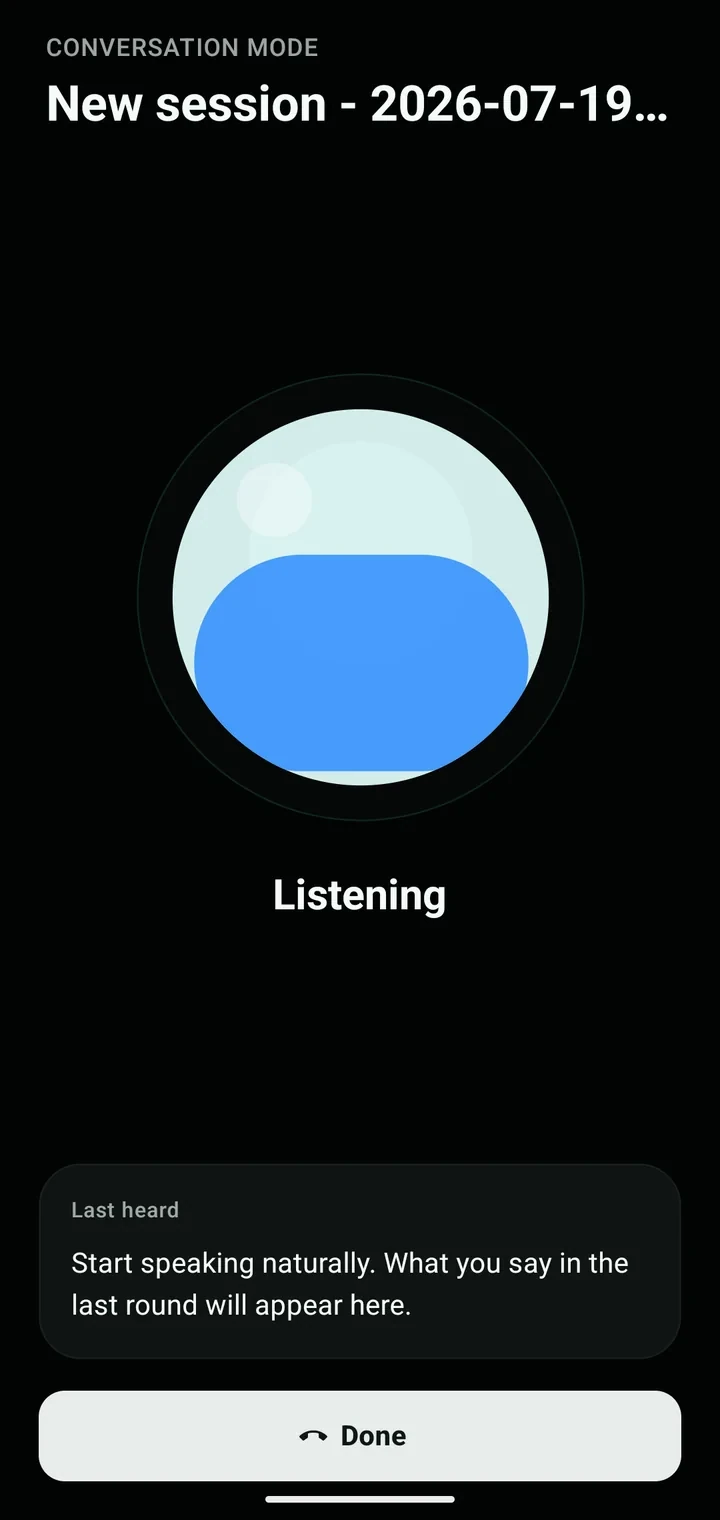
The overlay shows the active session, current phase, and last recognized speech. Tap Done to stop.
Configure the experience
Under Settings → Voice & responses, choose the recognition locale, playback voice, speech rate, automatic reply playback, resume-after-reply behavior, response style, and working sound.
Know the boundaries
- Conversation mode is foreground-only.
- It pauses for permissions and questions.
- It stops when connectivity is lost.
- Recognition quality depends on the device, language support, and background noise.
- Always review high-impact instructions on screen before allowing changes.