User Manual
This manual explains how to operate OpenCode Mobile after it is connected. If you have not installed the app or connected a server yet, start with Getting Started.
Prefer to begin with a goal? Open What Do You Want to Do? and choose the task that matches your situation. Each major capability also has its own step-by-step page in the Use the app sidebar.
Understand the app
OpenCode Mobile is a remote control surface for an OpenCode server. Your projects, sessions, models, tools, and generated changes live on the server. The phone displays that state and sends your actions back to it.
The bottom navigation has four areas:
| Area | Use it for |
|---|---|
| Chat | Start tasks, follow progress, answer questions, approve actions, and review changes |
| Terminal | Run focused line-based commands in a project PTY |
| Workspace | Choose projects; manage chats, files, and worktrees |
| Settings | Connect the server; configure AI providers, models, notifications, voice, MCP, and diagnostics |
Capability guides
- Start and monitor tasks
- Manage sessions
- Handle approvals and review changes
- Use voice and conversation mode
- Understand session usage
- Work with workspace files
- Use the terminal
- Manage worktrees
- Configure providers and models
- Manage MCP and read diagnostics
- Enable task notifications
Your first task
1. Choose the project
- Open Workspace.
- Select the project you want OpenCode to work in.
- In Chats, open an existing chat or use + to create one.
- Return to Chat.
The selected project scopes chat sessions, file search, source changes, worktrees, and terminals. The app remembers the last project and session for a later launch.
2. Set the task controls
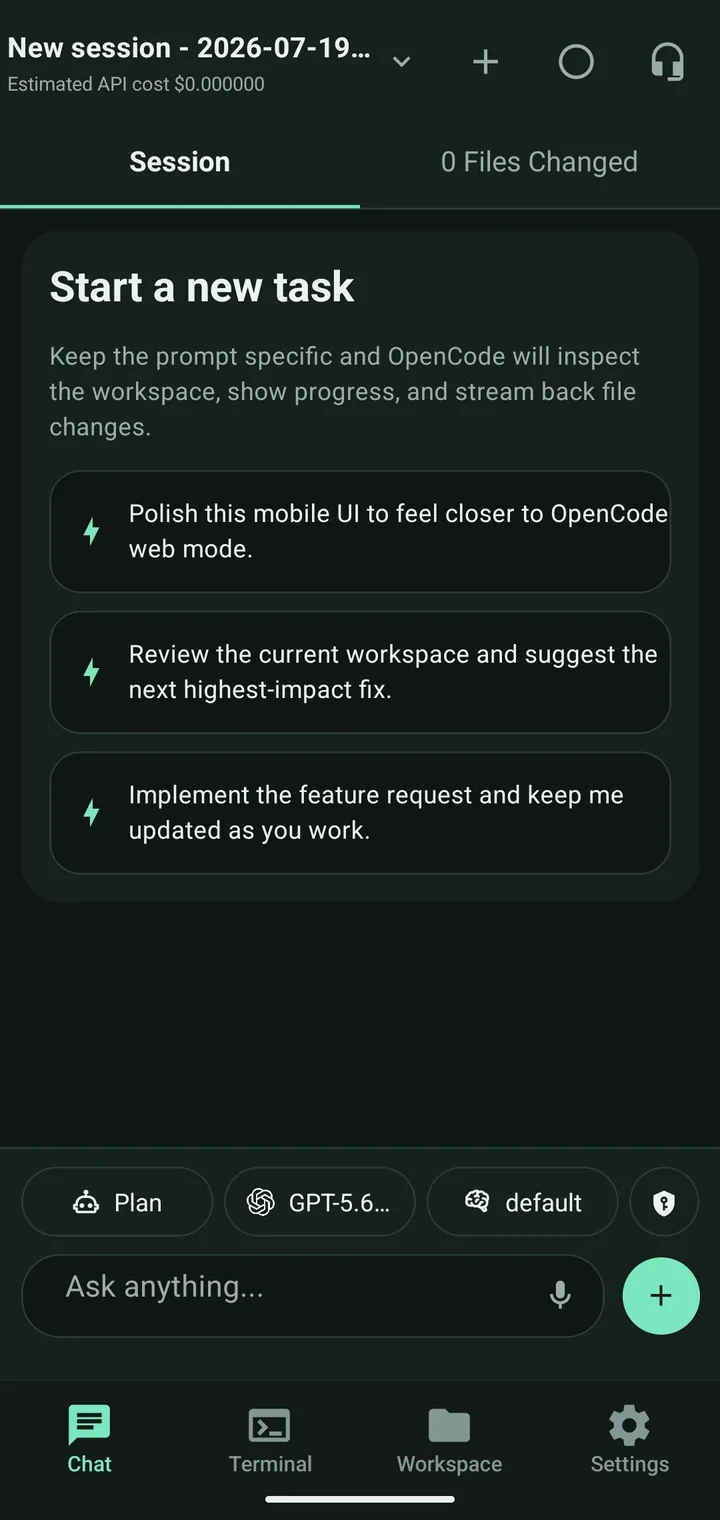
Above the message field, check the compact controls:
- Agent selects the OpenCode agent, such as Plan or Build.
- Model selects one of the models enabled in Settings.
- Reasoning selects the response/reasoning preference exposed by the app.
- Approval controls whether common tool permissions ask first or are automatically allowed.
Use Plan when you want OpenCode to inspect and propose before making changes. Choose a build-capable agent when you intend to let it implement the request.
3. Send a specific prompt
Describe the result, relevant constraints, and how success should be verified. For example:
Update the empty state on the account page. Reuse the existing button component, keep the current API contract, and run the related tests.
You can send:
- Text
- One or more attachments
- Text and attachments together
- A server-provided slash command
To attach a file, tap +. Local files larger than 10 MB are rejected before upload. Attachments are available only when the selected model advertises support for them.
When the draft starts with /, the app suggests matching commands supplied by the server. Selecting one fills the composer; add arguments and send it normally.
4. Follow the work
While OpenCode is active, Chat shows a running status and refreshes the transcript. Tool use, reasoning, patches, retries, and step activity are summarized under assistant messages instead of becoming dozens of separate chat bubbles.
Use the two tabs near the top:
- Session shows the conversation, task progress, todos, and requests that need you.
- Files Changed shows the current session diff with additions, deletions, and expandable line previews.
Pull to refresh when you want an immediate update. The app normally receives server events in real time and falls back to polling when that event stream is unavailable.
5. Respond when OpenCode is blocked
OpenCode may pause for a permission or a question. The request appears in the active session.
For permissions, choose:
- Allow once — permit this request only.
- Always allow — allow that permission category in future.
- Deny — refuse the operation.
For questions, select one or more supplied choices, enter a custom answer when available, and submit. You can also reject the question.
Read the requested command, path, or action before approving it. Auto-approval is convenient for a trusted workspace, but it reduces opportunities to review potentially destructive operations.
6. Finish or stop
When the task completes, review the assistant response and Files Changed. If notifications are enabled, a supported Android build can notify you when a tracked task finishes.
If a task is running and the composer is empty, the main composer action becomes Stop. Stopping aborts the active server session and refreshes its transcript, diff, and todos.
Work with chat sessions
Switch or create a session
Tap the session title at the top of Chat to open the session picker. Choose another session or use + to start a new one. Only one session is active in the app at a time, although other server sessions may continue running.
Copy or hear a response
- Long-press a message to copy its text or error.
- Use the speaker action on an assistant reply to play it with text-to-speech.
- Use Load earlier messages to reveal older transcript pages.
The in-app Markdown renderer supports headings, lists, fenced code, inline code, and bold text. It is intentionally smaller than a full desktop Markdown renderer.
Fork, revert, and restore
Actions on your messages let you manage alternate directions:
- Fork creates a new session from that message and opens it.
- Revert asks OpenCode to revert session changes after that point.
- Undo revert restores the reverted session state.
Revert changes server-side session state. Review the confirmation carefully, especially when other tools are modifying the same workspace.
Rename, share, archive, or delete
Open Workspace → Chats, then use the menu on a chat row:
- Rename changes the session title.
- Share creates a public share URL; Unshare removes it.
- Archive hides the chat without permanently deleting it.
- Delete permanently removes the session after confirmation.
Use the archive control at the top of the Chats panel to view archived chats. An archived chat can be restored or permanently deleted.
Sharing can expose the session transcript to anyone with the generated URL. Review the conversation for secrets and private code before confirming.
Inspect session usage
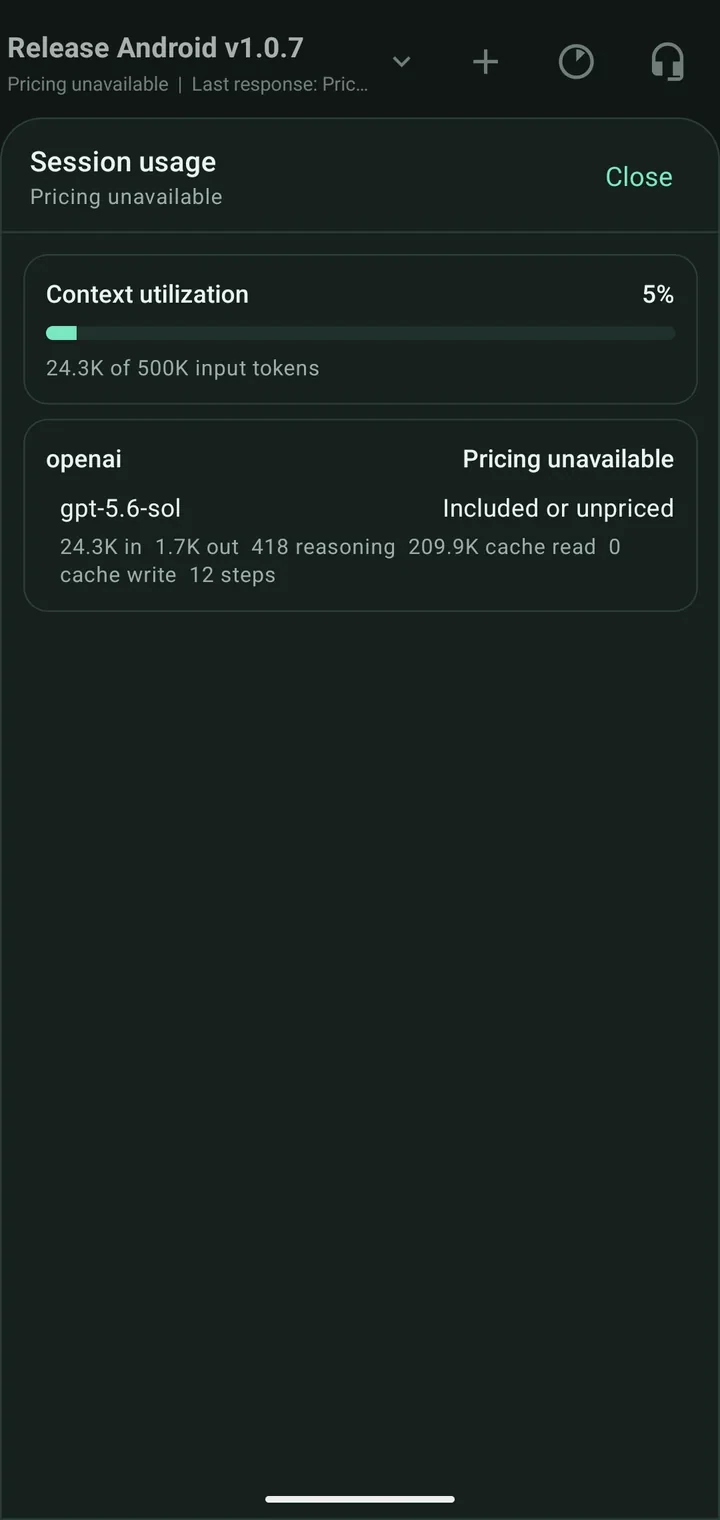
Open the usage action in the Chat header to inspect the current session's model consumption. The sheet can show:
- Context-window utilization
- Input and output tokens
- Reasoning tokens
- Cache reads and writes
- Step count
- Estimated API cost when provider pricing is available
“Pricing unavailable” or “Included or unpriced” means the server/model metadata cannot produce a reliable monetary estimate; token usage can still be useful.
Use voice
OpenCode Mobile has two different voice workflows.
Dictate one prompt
When the composer is empty, tap the microphone. Speak your prompt, review the captured text in the draft, edit it if necessary, and send it. Dictation does not submit until you choose to send.
Use conversation mode
Tap the headset action in the Chat header to start the hands-free loop:
- The app listens for one turn.
- Your recognized speech is submitted to the active session.
- The app waits for OpenCode.
- The assistant response is spoken aloud.
- Listening resumes when that preference is enabled.
The overlay shows the current phase and the last recognized text. Tap Done to leave conversation mode.
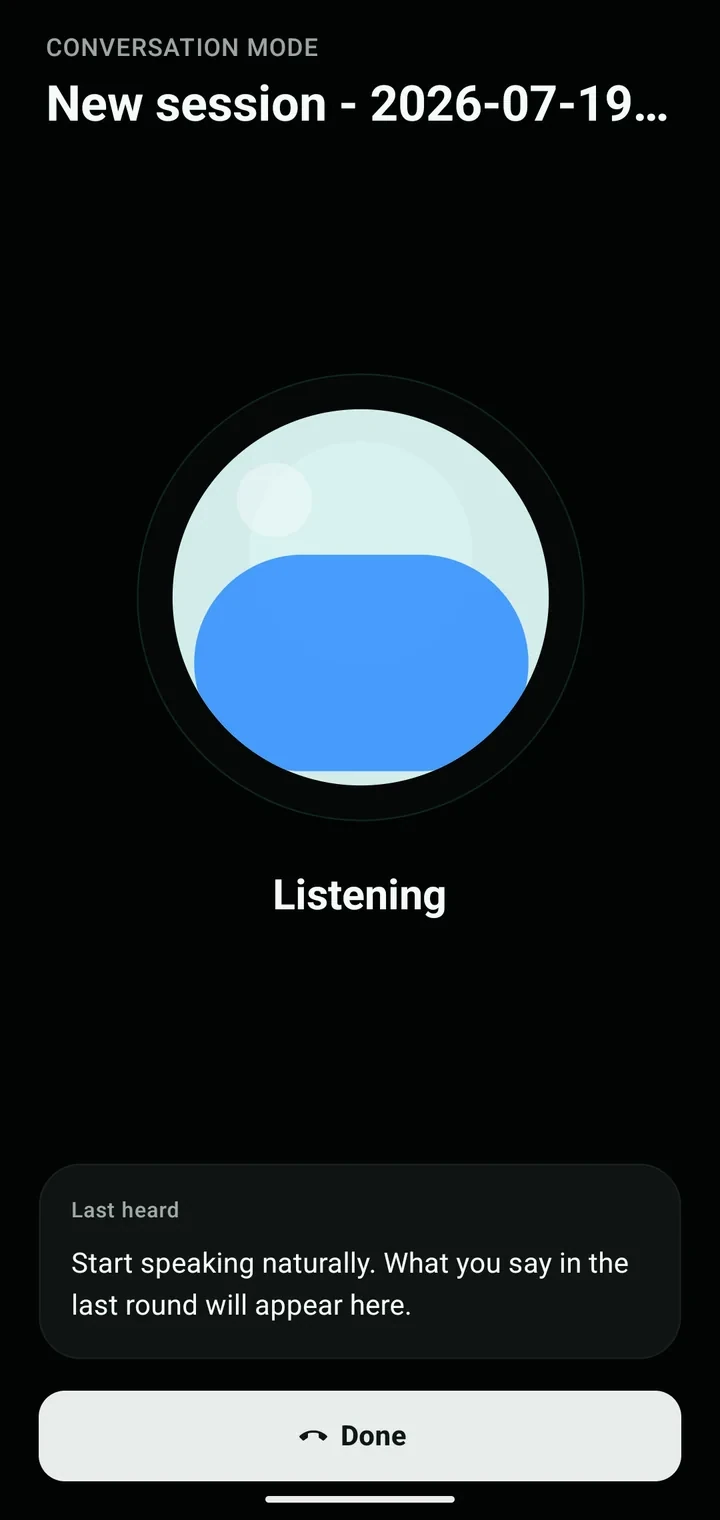
Conversation mode is foreground-only. It pauses when OpenCode needs a permission or question answered on screen, when connectivity is lost, or when the current session cannot accept another turn.
Configure recognition locale, playback voice, speech rate, automatic reply playback, resume-after-reply, response style, and working sounds under Settings → Voice & responses.
Use Workspace
Workspace is divided into Chats, Files, and Tools.
Chats
The Chats panel lists current and running chats first. Each row shows its title, recent detail, status, and last update. Tap a row to make it active; use its menu for lifecycle actions.
Files
- Open Workspace → Files.
- Search for a path or filename.
- Select a result to read its current server content.
- For a supported text file, tap Edit, change the content, then Save patch.
Before saving, the app re-reads the server copy. If it changed since you opened it, the save is rejected so you do not silently overwrite newer work. Binary or base64 content is read-only. The panel also shows the current branch when the server reports it.
Mobile editing is best for small, deliberate corrections. Use the session diff or your desktop tools for broader review.
Tools and worktrees
The Tools panel can list and manage OpenCode worktrees when the connected server exposes the experimental worktree endpoints.
- Create a worktree with an optional name and start command.
- Refresh the worktree list.
- Reset a worktree after confirmation.
- Remove a worktree after confirmation.
Worktrees are an experimental capability. Confirm the displayed directory and branch before reset or removal.
Use the Terminal
The Terminal tab connects to project-scoped PTYs on compatible servers.
- Select a project in Workspace.
- Open Terminal.
- Use + to create a terminal or the title menu to select an existing one.
- Enter one command and tap send.
- Refresh to reload available terminals, or close the current terminal to terminate it.
The terminal uses a short-lived ticket and a project-scoped WebSocket. It is a line console, not a full terminal emulator: interactive full-screen programs, cursor movement, and complex ANSI interfaces may not display correctly. Prefer short commands such as status checks, tests, logs, or scripts that produce plain output.
Configure models and providers
Open Settings → AI & providers to see the providers reported by OpenCode.
- Add a provider using the authentication methods supplied by the server.
- Complete OAuth in the browser and return with a code when required.
- Use API/manual authentication when offered.
- Remove stored provider credentials.
- Enable or disable individual models in the Chat model picker.
Server authentication and AI-provider authentication are separate. The credentials under Connection protect access to OpenCode; provider credentials allow OpenCode to call a model vendor.
Available agents, models, attachment support, reasoning support, and context limits come from the connected server. The mobile app cannot enable a capability the selected model does not advertise.
Configure MCP and diagnostics
Open Settings → Advanced for server integrations and health information.
Depending on server support, MCP controls can:
- Add local or remote MCP servers
- Enable, disable, connect, disconnect, or remove a server
- Complete remote MCP OAuth
Diagnostics can show:
- OpenCode health and version
- Realtime event-stream state or polling fallback
- MCP server state
- LSP and formatter availability
Refresh diagnostics after changing the server, proxy, OpenCode configuration, or MCP setup.
Notifications
Under Settings → Notifications, enable Android notification permission and inspect the current status. Open system notification or battery settings if Android is preventing delivery.
Notifications are a convenience, not a durable job queue. Delivery can be affected by device power management, app lifecycle, and platform restrictions. Background notification checks are unavailable on web and in Expo Go.
Recover from common problems
| What you see | What to do |
|---|---|
| Disconnected or a connection error | Open Settings, verify the complete URL and credentials, then tap Reconnect |
| Browser opens but the app reports 404 or non-API content | Use the actual API base, often the same URL with /api |
| No projects appear | Confirm the server account can access projects, then reconnect and refresh Workspace |
| A model is missing | Configure its provider and enable the model under AI & providers |
| Attach is unavailable | Select a model that advertises file/image input support |
| A session seems stuck | Check for a permission or question, then inspect realtime status in Diagnostics |
| Terminal is unavailable | Select a project and confirm that the server exposes the required PTY endpoints |
| File save is rejected | Reopen the file, merge the newer server content, and save again |
| Voice does not start | Check microphone/speech permissions and the selected recognition locale |
| Completion notification does not arrive | Check Android permission and battery settings; verify the task still appears in Chat |
For network-specific help, see Remote Access. For product boundaries and version questions, see the FAQ.