Monitor OpenCode Tasks on Mobile
Use Chat to start work from your phone, check whether a task is progressing, or give OpenCode its next instruction.
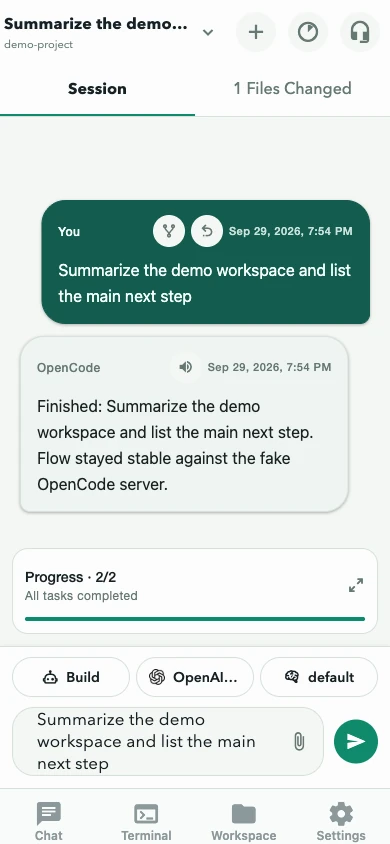
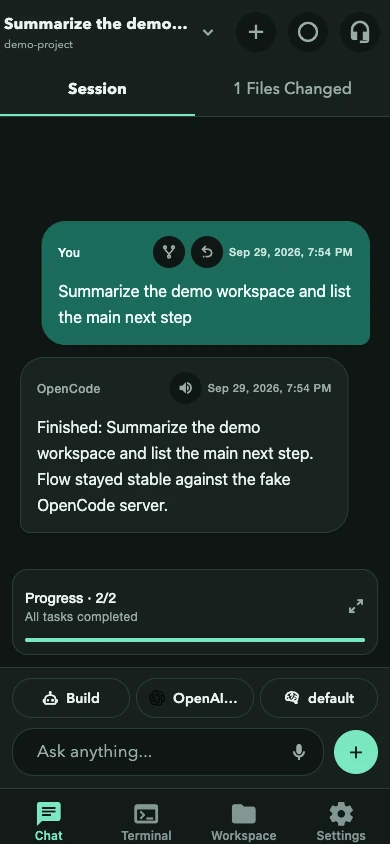
The screenshot follows the website’s current color theme.
Before you start
Section titled “Before you start”- Select the intended project in Projects or through the project picker in Chat.
- Confirm the session title at the top of Chat.
- Choose the agent and model above the composer.
- Keep approval prompts enabled when working in an unfamiliar repository.
Send a task
Section titled “Send a task”- Write the outcome you want in Ask anything.
- Add constraints that OpenCode should preserve.
- Say how the result should be checked.
- Tap send.
A useful prompt is specific without dictating every implementation detail:
Fix the empty state on the account page. Reuse the existing button component, do not change the API, and run the related tests.
You may also attach files with +, dictate into the draft with the microphone, or select a server-provided slash command after typing /.
Attach context
Section titled “Attach context”- Attachments are limited to 10 MB per file.
- The selected model must advertise attachment support.
- Images, documents, and other supported files can be previewed before sending.
- On Android, content shared from another app opens a review screen first; see Share from other apps.
- Shared or attached content is never submitted automatically.
Follow the work
Section titled “Follow the work”The Session tab shows the conversation, running status, todos, and anything waiting for you. Tool activity and reasoning appear as compact supporting details beneath assistant messages.
The Files Changed tab shows the current diff. Expand a file to inspect additions and deletions before treating the task as complete. Use the source control in the diff overlay to switch between Turn, Uncommitted, and Branch scopes.
If the composer is empty while the task is running, its main action becomes Stop. Use it to abort a task that is going in the wrong direction.
Send another message while work is running
Section titled “Send another message while work is running”On OpenCode 2 servers, Settings → Advanced → Editor controls how messages sent during a running task are delivered:
- Steer applies the message at the next step of the current response.
- Append queues the message for a later turn.
Choose the behavior that matches the intent. Steering can correct a run quickly; appending preserves the current turn.
What good completion looks like
Section titled “What good completion looks like”- The assistant explains what changed.
- Files Changed matches the requested scope.
- Relevant validation passed or any failure is clearly reported.
- No permission or question is still waiting for you.
- The notification, if enabled, matches the actual server state.
Next: Review approvals and changes, inspect session usage, or manage the session.