Edit Project Files in OpenCode Mobile
Use the Files panel in Projects to inspect the selected project workspace or make a small, deliberate text correction without opening a desktop editor.
Find and read a file
Section titled “Find and read a file”- Select the correct project in Projects.
- Open the Files tab.
- Search by path or filename.
- Tap a result to load its current server content.
The panel can also show the current version-control branch and changed-file count when the server supplies them. Changed files are marked as added, modified, or deleted; deleted file content may be unavailable.
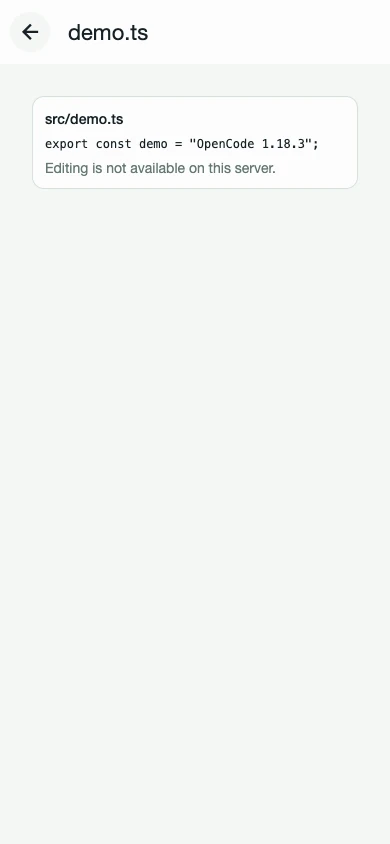
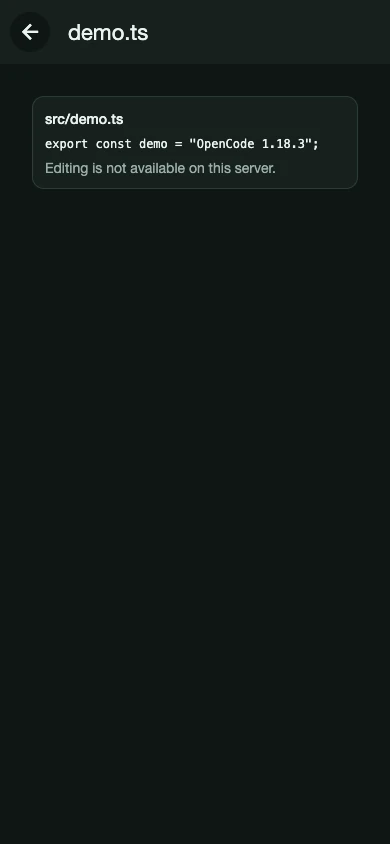
The file view follows the website’s current color theme.
Make a focused edit
Section titled “Make a focused edit”- Open a supported text file.
- Tap Edit.
- Change only the necessary content.
- Tap Save patch.
- Review the resulting VCS change before continuing.
Before saving, the app re-reads the server file and compares it with the content you opened. If the file changed in the meantime, the save is rejected instead of overwriting newer content. Reopen the file, incorporate the current version, and try again.
OpenCode 2 uses the native file.write API for saving. The same read-before-write check applies, but V2 has no conditional-write API, so a concurrent edit that lands between the final read and the write cannot be fully prevented. Treat the check as a safety net, not a lock. V1 servers use their compatible save path.
Only non-base64 text files are editable. Binary content is read-only.
Choose the right tool
Section titled “Choose the right tool”Mobile file editing works well for a typo, configuration value, or small documentation adjustment. For multi-file refactors, use Chat to describe the goal and review the diff, or return to a desktop editor.
If editing is unavailable, the connected server did not report the required capability. Use Chat to request the change and review the resulting diff.
Next: Review approvals and changes, use worktrees, or run a focused terminal command.