Use Voice with OpenCode Mobile
Use voice for quick follow-ups while walking, reviewing another screen, or when typing a detailed prompt is inconvenient.
Dictate one prompt
Section titled “Dictate one prompt”- Make sure the composer is empty.
- Tap the microphone.
- Speak one instruction.
- Review and edit the recognized draft.
- Send it when it says what you intended.
Dictation fills the draft; it does not bypass your review or send automatically.
Have a hands-free conversation
Section titled “Have a hands-free conversation”With the composer empty, tap the waveform button. The app cycles through:
- Listening for your turn.
- Submitting the recognized instruction.
- Waiting for OpenCode.
- Speaking the assistant response.
- Returning to listening when resume-after-reply is enabled.
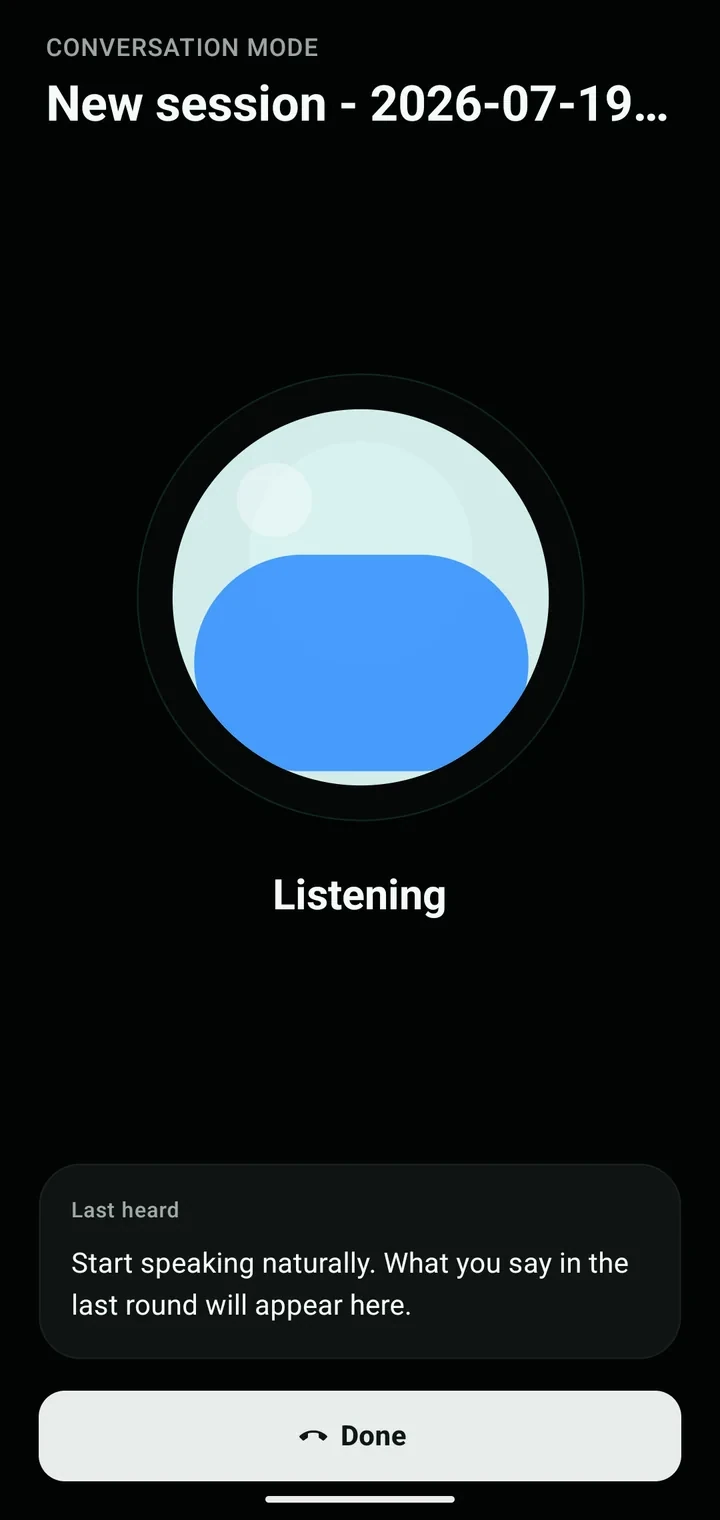
The overlay shows the active session, current phase, and last recognized speech. Tap Done to stop.
Conversation mode is foreground-only. It pauses for permissions or questions and stops when connectivity is lost.
Configure the experience
Section titled “Configure the experience”Open Settings → Voice & responses to control:
- On-device voice input — prefer local recognition and avoid cloud fallback when possible.
- Speech locale — choose the recognition and playback language, or follow the system default.
- Voice — select an available text-to-speech voice.
- Speech rate — adjust playback speed.
- Auto-play assistant replies — read the latest response when it finishes.
- Resume listening after reply — continue the conversation loop.
- Response scope — brief, balanced, or detailed answers.
- Simple next actions — ask the assistant to end with a short recommendation when there is a clear next move.
- Working sound — play a soft chime or glass tone while work is running.
Response scope, next actions, and working sound are preferences; they shape the generated system prompt or local audio behavior, not the app layout.
Check permissions and capabilities
Section titled “Check permissions and capabilities”Use the Voice check in Settings to review:
- microphone and speech permission;
- speech recognition availability;
- on-device recognition support;
- a playback test.
If permission was denied, open the device settings from the check. On iOS, the app retries through network recognition when on-device recognition cannot run for the selected locale, then reports a recovery action if both fail.
Know the boundaries
Section titled “Know the boundaries”- Conversation mode is foreground-only; continuous background microphone capture is not supported.
- It pauses for permissions and questions.
- It stops when connectivity is lost.
- Recognition quality depends on the device, language support, and background noise.
- Always review high-impact instructions on screen before allowing changes.
- Background completion notifications may be available, but background speech is not.
Next: Configure providers and models, start a task, or review permissions and changes.