Use the OpenCode Terminal from Mobile
Use Terminal for a focused command such as checking Git status, running a test, reading a short log, or invoking a project script. The terminal is backed by a project PTY and an xterm-based renderer, so it handles far more than a single-line command box.
Open a terminal
Section titled “Open a terminal”- Select a project in Projects.
- Open Terminal.
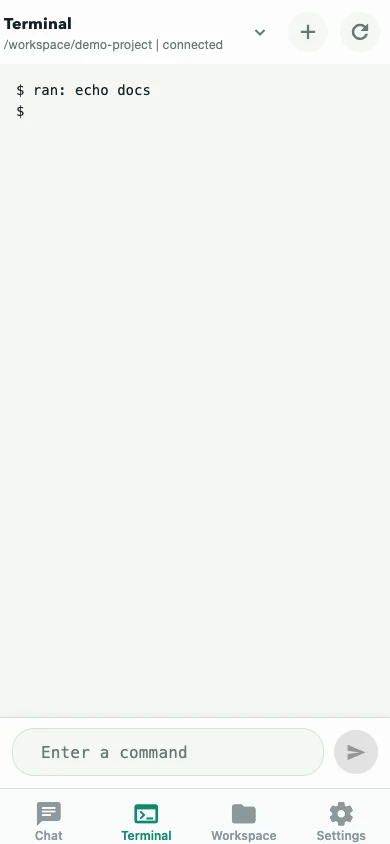
- Tap + to create a project PTY, or open the title menu to reconnect to an existing one.
- Type directly in the terminal. Input is sent as you enter it.
Use refresh to reload the server’s terminal list. Closing the active terminal terminates that PTY after confirmation.
The terminal preserves the configured API path prefix, switches http/https to ws/wss, and uses a short-lived server-issued connect ticket. Basic-auth credentials are not embedded in the WebSocket URL.
What the terminal supports
Section titled “What the terminal supports”- ANSI/VT cursor behavior and common terminal escape sequences
- Alternate-screen programs and full-screen terminal UIs
- Up to 10,000 lines of scrollback per opened terminal
- Resize events when the mobile layout changes
- Reconnect with acknowledged output cursors and a fresh ticket
- A system-keyboard accessory with Esc, Tab, sticky modifiers, arrow keys, and an expandable function/navigation/paste row
Opened terminals survive tab and terminal switches. The provider bounds pending output to avoid unbounded memory growth.
Commands that work well
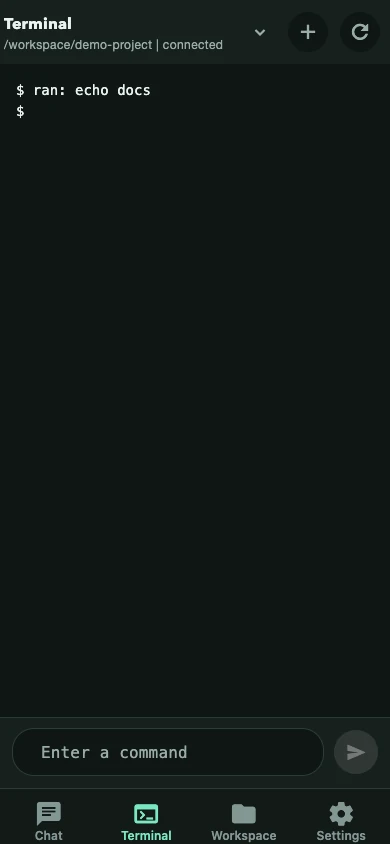
Section titled “Commands that work well”git status --shortnpm testnpm run typechecktail -n 80 path/to/logThe terminal output follows the website’s current color theme.
What it is not
Section titled “What it is not”The mobile terminal is not a replacement for a desktop terminal workspace. Small screens, the software keyboard, copy/paste, and mobile focus behavior still make long interactive sessions awkward. It also depends on compatible OpenCode PTY endpoints and a WebSocket path through your proxy or tunnel.
If a full-screen program does not respond as expected:
- Confirm the command is available on the server.
- Check that the proxy forwards WebSocket upgrades.
- Try the command in a desktop terminal to separate app and server issues.
- Reconnect the terminal to refresh its ticket and cursor state.
Troubleshooting
Section titled “Troubleshooting”- Terminal tab is empty: confirm the server exposes PTY endpoints and a project is selected.
- Chat works but terminal fails: the proxy or tunnel is probably dropping WebSocket upgrades.
- Input looks wrong: use the keyboard accessory for Esc, Tab, arrows, and modifiers; some full-screen programs need them.
- Terminal disconnects: reconnect from the title menu. The app retries unexpected disconnects with backoff.
Next: Troubleshoot the connection, review remote-access options, or work with files.